
WASViking AI Guardian
Roll out the WASViking AI Guardian on employee laptops and desktops. Enable it in the portal, install the agent and the managed browser extension, validate detection and the first policy block, then operate it day to day (updates, identity mapping, advanced detection).
The WASViking® AI Guardian gives you visibility and control over how employees use generative-AI tools on their work devices. A lightweight Sentinel agent runs on each host and pairs with a managed browser extension (Chrome, Edge, or Firefox). Together they classify AI exposure (which vendors are visited, what kind of content is involved, a risk score, and masked evidence) and forward that telemetry to WASViking over an encrypted, mutually authenticated connection.
Privacy is built in: the agent forwards classifications, scores and masked evidence only, never raw prompts, pasted content, or files. The local audit log stays on the device; cloud forwarding and storage are governed by the master toggle in the portal.
The setup has two halves, and the order matters: configure the
WASViking portal first (enable AI Guardian, set the governance
policy, and mint an API Key scoped to ai_guardian:install), then run a
one-line install command on each device. You do not need to create
a Sentinel Agent token for AI Guardian.
For background on what AI Guardian detects and how the policy engine works, see WASViking AI Guardian.
What this deployment does
- Discovers and classifies AI usage per device: which AI vendors (OpenAI, Anthropic, Google, Microsoft, Perplexity, and more) are used, and how.
- Forwards privacy-preserving telemetry: classifications, risk scores, and masked evidence. Raw prompts, pasted content, and files never leave the device.
- Enforces vendor governance: classify each AI vendor as approved (sanctioned), blocked (flagged red), or leave it for review (the default: every known vendor is treated as Shadow AI).
- Force-installs and pins the managed browser extension via the OS managed-policy channel so it cannot be removed by the user.
- Protects the deployment with a master password required to uninstall the agent or lift the force-installed browser policy.
- Governs agent self-updates with a release channel and an optional pinned version for homologated builds.
- Surfaces everything in the portal under AI Guardian (Executive Summary, AI Applications, dashboard) and routes alerts through your notification channels.
How it works
- You enable AI Guardian and set the governance policy in the portal.
- You mint an API Key scoped to
ai_guardian:install. Creating the key shows a one-time install command. - On each device, the install command installs the agent, registers the device with your organization, and force-installs the browser extension via managed policy.
- The agent and the extension work together on the device. AI exposure is classified locally and forwarded to WASViking over an encrypted connection.
- The portal evaluates the telemetry against your vendor governance and raises alerts on blocked or Shadow-AI usage.
Access posture
- The agent forwards classifications, scores, and masked evidence only. Raw prompts, pasted content, and files never leave the device.
- The local audit log stays on the device; the master toggle in the portal controls cloud forwarding and storage. Disabling it stops forwarding immediately; the browser sensor never holds this control.
- Forwarding uses an encrypted, mutually authenticated connection.
- Installation credentials are stored using the operating system's protected credential storage and are never persisted in plaintext.
- The master password is stored as a one-way hash and is never shown again; it gates uninstall and policy removal on managed hosts.
- Revoke access at any time by toggling AI Guardian off, revoking the API Key, or uninstalling the agent with the master password.
Pre-requisites
| Requirement | Detail |
|---|---|
| WASViking plan | AI Guardian (AI browser monitoring) enabled for your organization. |
| Portal role | Admin or Manager, to enable AI Guardian and issue API Keys. |
| Device OS | Windows 10/11 (x64/arm64), macOS (Intel/Apple Silicon), or Linux (amd64/arm64). |
| Browser | Google Chrome, Microsoft Edge, or Mozilla Firefox. |
| Network egress | HTTPS to api.wasviking.com on TCP 443. No inbound is needed. |
| Privileges | A standard per-user install needs no admin rights. Force-installing the browser policy and the Windows Enterprise MSI use elevation/MDM. |
Step 1: Enable AI Guardian (portal)
In the portal, go to Settings → System Settings → AI Guardian and turn on the WASViking AI Guardian master toggle. The status reads Enabled once active.
This toggle governs cloud forwarding and storage of AI-exposure telemetry. When it is off, registered agents stop forwarding to WASViking; the local audit log on each device is unaffected. The browser sensor cannot override this control.
The change takes effect within a few minutes on every registered
endpoint and is logged in the audit trail. If
you do not see the AI Guardian tab, the feature is not yet active on
your plan; contact [email protected] to have it activated.
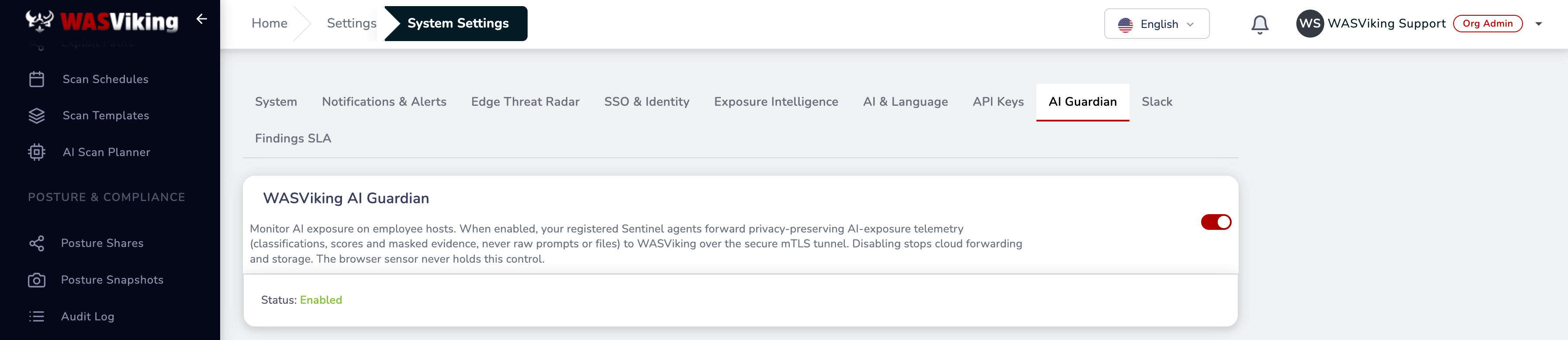 Settings → System Settings → AI Guardian → master toggle.
Step 2: Set a master password (recommended)
In the same tab, under Master password, set a password of at least 12 characters and click Save. It is stored as a one-way hash and never shown again.
This password is required to uninstall the agent or lift the force-installed browser policy on a managed host. Without it, a user cannot remove the agent or disable the extension. Use Remove master password to clear it (and the uninstall protection).
Keep the passphrase in your secrets manager. The portal stores only a one-way hash and the endpoint never sees the cleartext. If you lose it, set a new one in the portal before any agent can be uninstalled.
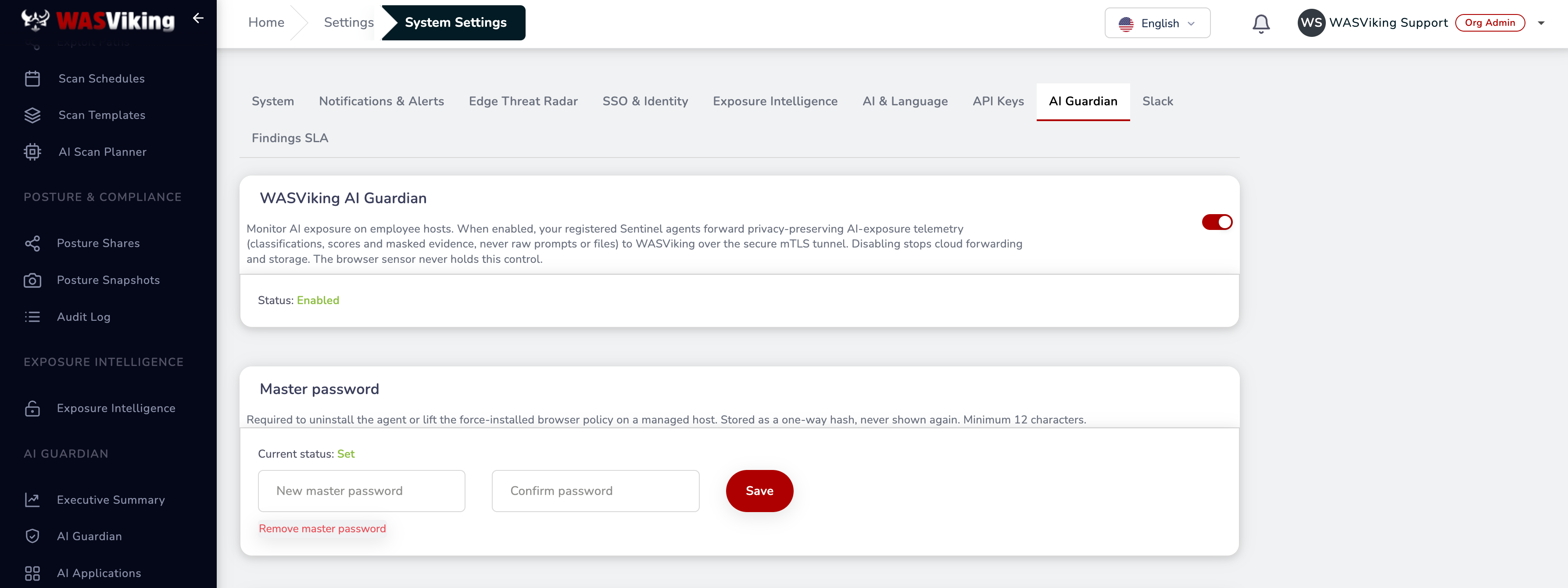 Master password: gates uninstall and policy removal.
Step 3: Configure agent updates (optional)
Under Agent updates, choose how devices self-update:
| Field | Purpose |
|---|---|
| Release channel | Cadence of the self-update flow: Default (stable), Stable, Beta, or Canary. |
| Pinned version | Forces a specific homologated build (for example, 1.5.20) regardless of channel. Leave empty to follow the channel. |
Both empty means the agent follows the default stable channel. Click Save. A pinned version that does not exist in the release catalog is treated as "no update available" rather than an error.
 Agent updates: release channel and optional pinned version.
Step 4: Configure vendor governance
Under Vendor governance, classify each AI vendor:
| Classification | Effect |
|---|---|
| Approved | Usage is recorded as sanctioned. |
| Blocked | Usage is recorded as blocked and shown red in the dashboard. Blocked wins on overlap. |
| Neither (default) | The vendor is treated as Shadow AI and surfaced for review. |
Tick the built-in vendors (OpenAI, Anthropic, Google, Microsoft, Perplexity, Quora, DeepSeek, xAI, OpenRouter, HuggingFace, Mistral, Lovable) in either column, and add any others in the Custom vendors textareas (one per line). Click Save.
The agent picks up both lists the next time it restarts (which includes any self-update). New events are classified with the updated lists from then on.
Blocking a vendor here does not by itself stop an event; it classifies and flags it. To actively enforce on the endpoint, create an AI Guardian Policy rule (portal → AI Guardian → AI Guardian Policies). Note that rule event matching is strict: an
event:pasterule does not cover prompt submissions or file uploads; use Any for full coverage.
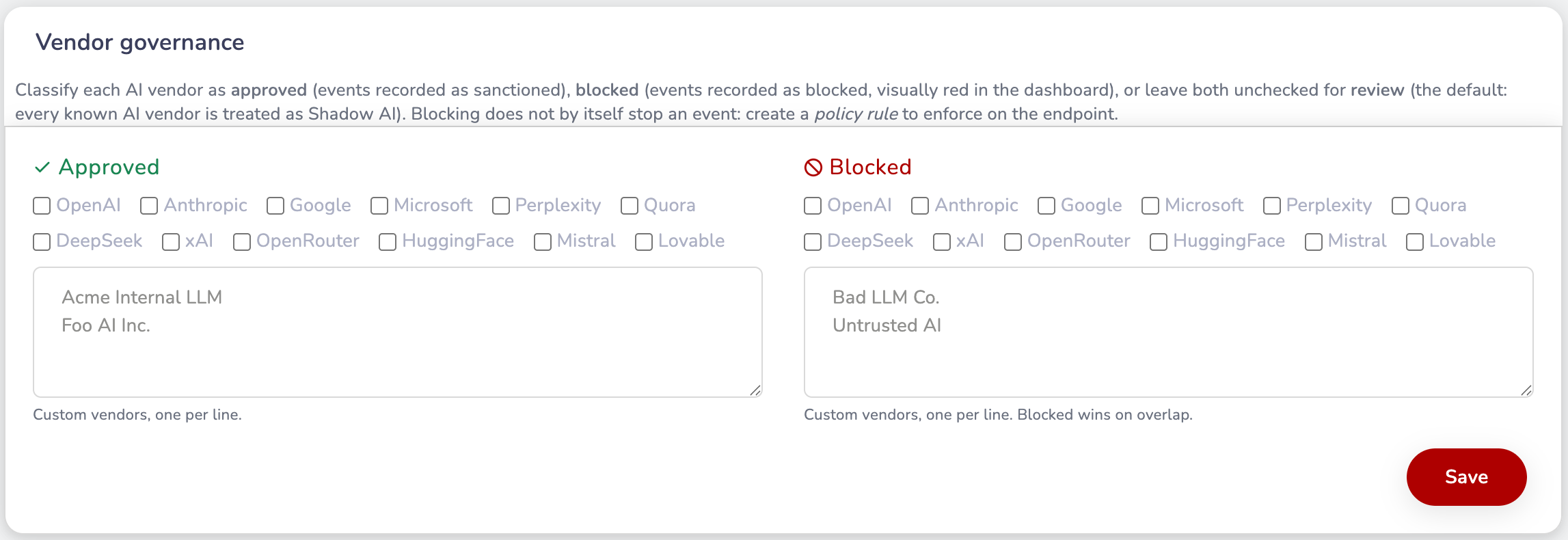 Vendor governance: approved, blocked, and custom vendors.
Step 5: Create an API Key scoped to ai_guardian:install (portal)
This key authorizes installing the AI Guardian endpoint on a device.
Go to Settings → System Settings → API Keys and click + New Key.
| Field | Value |
|---|---|
| Label | Something identifiable, for example AI Guardian rollout or one per fleet/team. |
| Scopes | Select ai_guardian:install: "Install the AI Guardian endpoint on a new machine. A one-time bootstrap is minted with the key, so the full install command is shown only here." |
Click Create Key. The portal shows the raw key once, together with the install command for Linux, macOS, and Windows (switch with the OS tabs). Copy the command now: it is shown only on this screen.
You can reuse the same key to install on as many machines as you need while the key is active. The key is only used to install: a device that is already registered no longer depends on it, so you can rotate or revoke the install key without disconnecting devices that are already running.
Adding
ai_guardian:installto an existing key later (via Edit) does not reveal a new install command. To get a fresh command, create a new key.
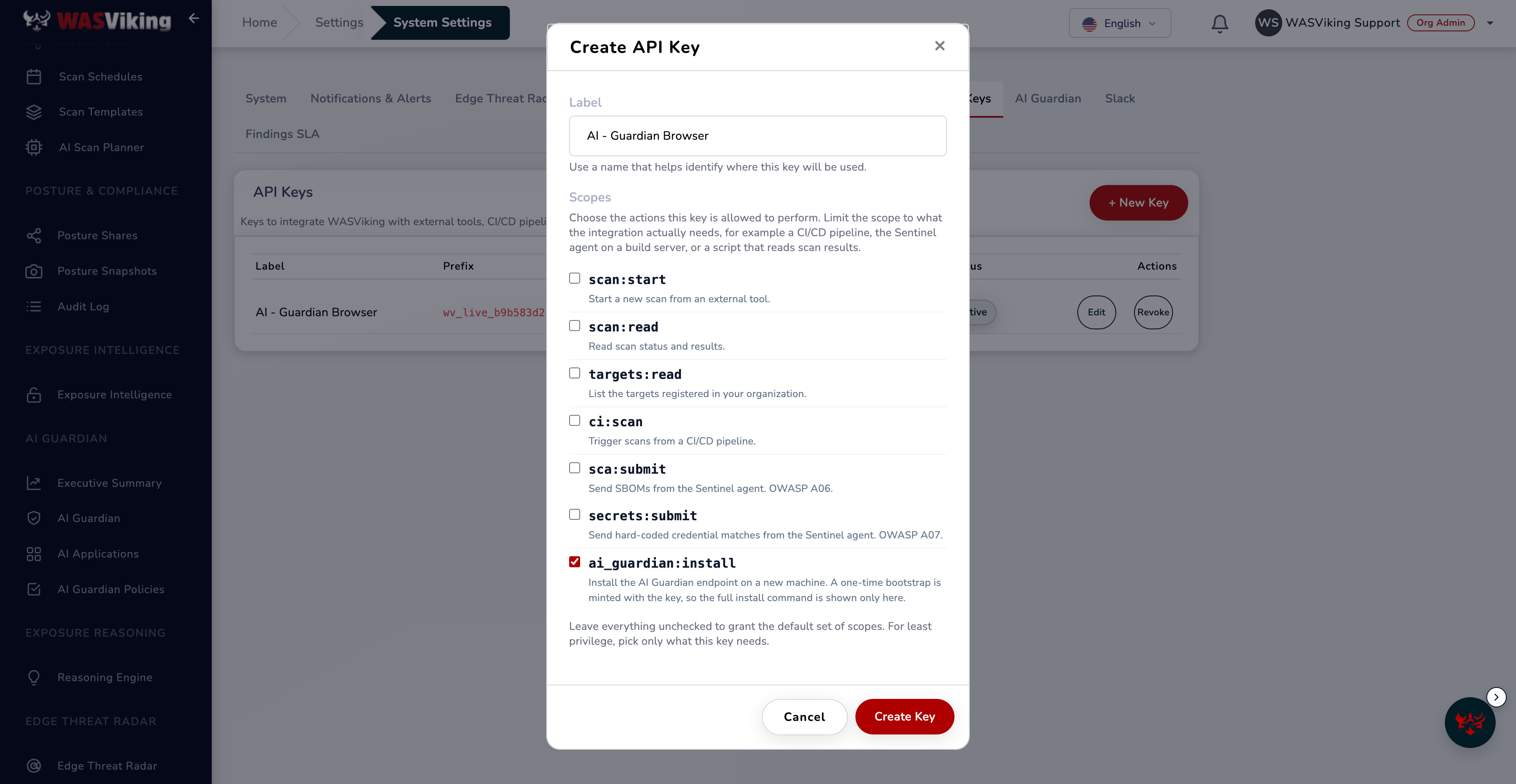 API Key scope picker with ai_guardian:install selected.
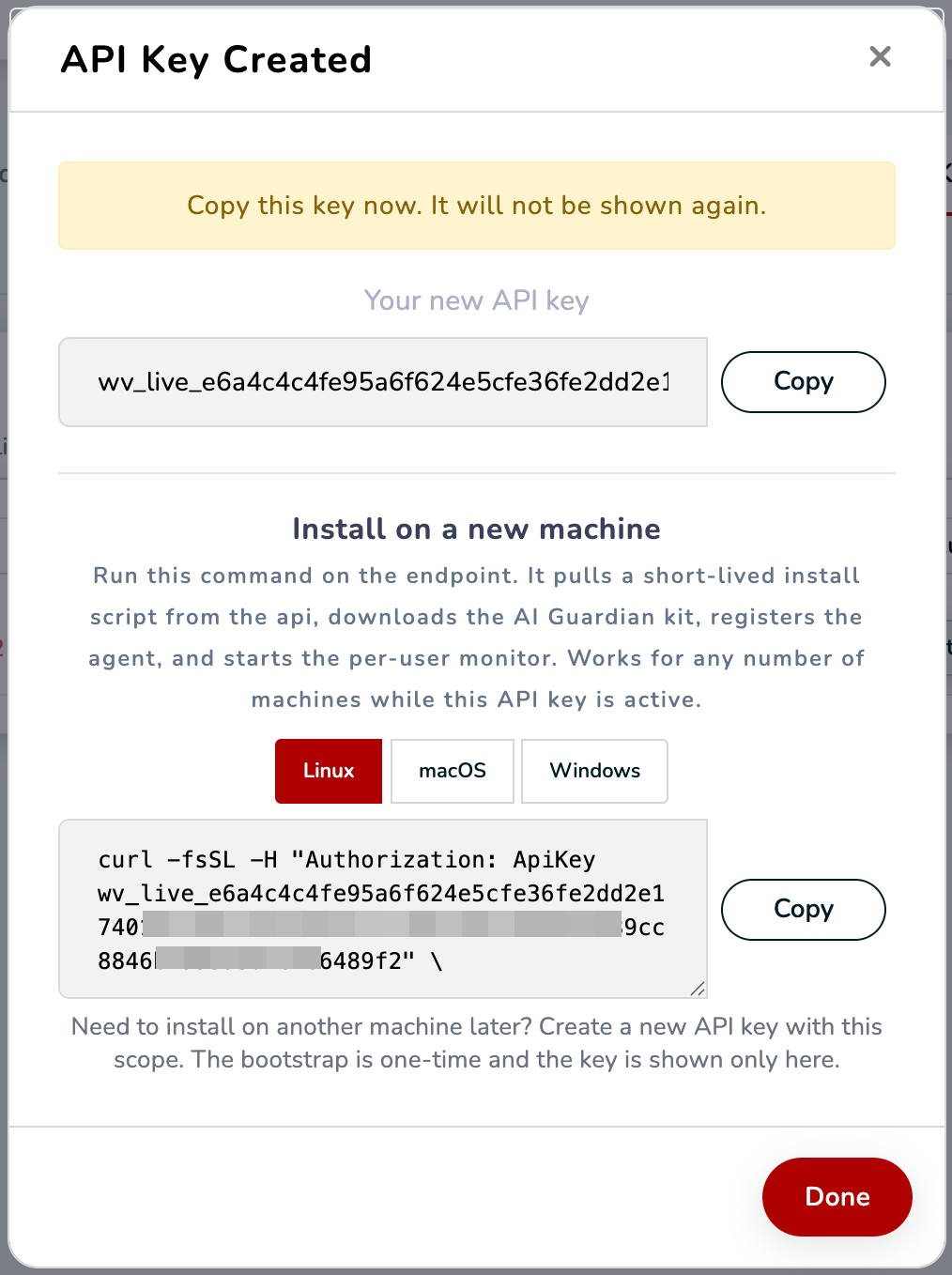 The one-time install command, shown only at key creation.
Step 6: Install the agent on each device
Run the command from Step 5 on the device. It installs the agent, registers the device with your organization, and force-installs the browser extension via managed policy.
Linux / macOS
curl -fsSL -H "Authorization: ApiKey wv_live_xxx" \
  https://api.wasviking.com/api/v1/sentinel/ai-guardian/install.sh | sh
The agent runs as a per-user service (systemd --user on Linux, a
LaunchAgent on macOS). No root or sudo is required for the standard
install. On Linux, to keep it running after logout:
sudo loginctl enable-linger "$USER".
Verify the agent:
# Linux
systemctl --user status wasviking-sentinel

# macOS
launchctl list | grep wasviking
On the first run, macOS may prompt for permission to allow the browser extension and its connection to the WASViking agent. Approve both.
Windows
The Windows agent ships in two install vehicles. They differ in scope (per-user vs. per-machine), in boot mechanism (Scheduled Task vs. Windows Service), and in privilege requirements. Pick the vehicle that matches your operating model.
| Aspect | PowerShell installer (install.ps1) |
Enterprise MSI |
|---|---|---|
| Scope | Per-user. Each profile that monitors AI usage runs its own install. | Per-machine. One install covers every user that signs in. |
| Privilege | Runs without local administrator. | Local administrator required. MDM-pushed installs already run as SYSTEM. |
| Install path | %LOCALAPPDATA%\WASViking\Guardian\ |
%ProgramFiles%\WASViking\Guardian\ for binaries, %ProgramData%\WASViking\Guardian\ for config, certs, and logs. |
| Boot mechanism | Scheduled Task WASViking AI Guardian, trigger AtLogon, runs in the user session. |
Windows Service WASVikingGuardian, start type Automatic, runs as LocalSystem. |
| Distribution | Manual or via scripted runner, one user at a time. | Intune Win32 LOB, SCCM Application, Group Policy software installation. |
| Right fit for | Single-machine evaluation, IT-administered laptops, contractor BYOD. | Managed fleet, regulated environments, SOC and audit posture. |
Option A: Single user, single machine (install.ps1)
Run from a PowerShell session as the user who will be monitored. The script registers the AI Guardian Scheduled Task in that user's session. The force-install of the browser policy prompts for UAC elevation.
iex (irm -Headers @{Authorization='ApiKey wv_live_xxx'} `
  https://api.wasviking.com/api/v1/sentinel/ai-guardian/install.ps1)
Verify:
Get-ScheduledTask "WASViking AI Guardian"
Get-ChildItem "$env:LOCALAPPDATA\WASViking\Guardian\"
Option B: Fleet deploy, per-machine (MSI)
Prerequisites:
| Requirement | Value |
|---|---|
| OS | Windows 10 21H2 or later, Windows 11, Windows Server 2019 or later. |
| Architecture | x64. Windows 11 ARM64 runs the x64 agent transparently through Prism. |
| Privileges | Local Administrator, or SYSTEM under MDM. |
| Outbound network | TCP 443 to WASViking. No inbound ports. |
| API key | An organization API key with the ai_guardian:install scope from Step 5. |
Steps:
- Sign in to the portal and go to Sentinel Agents > Get Agent > AI Guardian MSI (x64) to download the installer.
- Stage the
.msion your distribution share or in your MDM artifact store. - Push the install with
msiexecand the properties from the table below. The MSI registers the device during install, so no post-install scripting is required.
msiexec /i <PATH>\wasviking-ai-guardian_<VERSION>_amd64.msi /qn `
  /l*v "%TEMP%\guardian-install.log" `
  WASV_API_KEY="<WASV_API_KEY>"
MSI properties:
| Property | Required | Value |
|---|---|---|
WASV_API_KEY |
Yes | Organization API key with the ai_guardian:install scope. |
Intune. Package the MSI as a Win32 LOB app. Set the install command
to the msiexec line above. Set the uninstall command to
msiexec /x {<PRODUCT_CODE>} /qn. Retrieve <PRODUCT_CODE> from any
installed machine with:
Get-WmiObject Win32_Product -Filter "Name='WASViking AI Guardian'" |
  Select-Object IdentifyingNumber
The ProductCode regenerates on every MSI build to enable
MajorUpgrade. The UpgradeCode is stable and is what Intune, SCCM,
and Group Policy use for upgrade detection.
SCCM. Create an Application of type Windows Installer (.msi). On
the Programs tab, use the msiexec line above as the install command.
Set the detection method to "Windows Installer" with the ProductCode
field empty so SCCM detects upgrades by UpgradeCode.
Group Policy software installation. Publish or assign the .msi
under Computer Configuration > Software Installation. Pass
WASV_API_KEY through a transform (.mst) generated with Orca, or
wrap the install in a startup script that sets the property.
What the MSI installs:
| Location | Purpose |
|---|---|
C:\Program Files\WASViking\Guardian\ |
Agent binaries. |
C:\ProgramData\WASViking\Guardian\ |
Configuration, device certificates and logs. |
C:\ProgramData\WASViking\Guardian\logs\sentinel_agent.log |
Agent log. |
Service WASVikingGuardian |
Starts automatically and runs as LocalSystem. |
Verify the MSI install:
sc.exe query WASVikingGuardian
Get-ChildItem 'C:\Program Files\WASViking\Guardian\' -Recurse
Get-ChildItem 'C:\ProgramData\WASViking\Guardian\' -Recurse
Expected:
| Check | Expected result |
|---|---|
sc.exe query WASVikingGuardian |
STATE: 4 RUNNING, ACCEPTS_SHUTDOWN. |
Get-Service WASVikingGuardian |
Status Running, StartType Automatic. |
Agent log (C:\ProgramData\WASViking\Guardian\logs\sentinel_agent.log) |
No ERROR lines. |
MSI log (%TEMP%\guardian-install.log) |
Last lines show Installation completed successfully and MainEngineThread is returning 0. |
Mass deployment
| Platform | Vehicle | Distribution tool |
|---|---|---|
| Linux | install.sh |
Ansible, Puppet, Chef, Salt, or any tool that runs a shell script with the Authorization header secret injected at deploy time. |
| macOS | install.sh |
Jamf Pro, Workspace ONE UEM, Kandji, Mosyle, or any MDM that runs a shell script as the target user. |
| Windows | .msi |
Intune (Win32 LOB), SCCM (Application), Group Policy software installation. Pass WASV_API_KEY as an MSI property. |
All three vehicles are idempotent and safe to re-run. The same install API key works across the entire fleet, and rotating it has no effect on devices that are already enrolled.
Replace
wv_live_xxxwith your real key; the portal pre-fills the full command for you on the key-creation screen. The install command expires a few minutes after it is fetched, so run it promptly.
The browser extension
The managed extension is what observes AI usage in the browser, and it works together with the agent on the same device. The agent must be installed and running: without it the extension shows "Not paired with the local WASViking agent." The installer in Step 6 force-installs the published extension automatically, but users can also install it manually from the official stores:
At the next browser launch, the extension installs and pins itself to the toolbar. The popup shows Paired with the local WASViking agent when the extension and the agent are connected.
The force-install uses the standard managed-policy mechanisms the browsers already support; the policy keys are documented by the browser vendors and remain the authoritative reference:
Operators that deploy through MDM (Intune, Jamf, Workspace ONE) can apply the same managed-policy values through their existing channels instead of relying on the agent to write them.
A manually installed extension still needs the agent. If the popup stays "not paired", confirm the agent service is running and that the agent was installed with that browser selected.
Step 7: Validate detection and policy enforcement
Confirm the device shows up in the portal
Within a couple of minutes of installation, open Cyber Risk > AI Guardian in the portal. The endpoint will appear under Monitored devices as soon as it processes its first event.
Generate a test event
Open Chrome or Edge on the endpoint. Visit chat.openai.com (or any
AI tool listed in the dashboard) and paste sensitive content into the
composer. The classifier ships with a wide catalog, including:
- Brazilian and global identifiers: CPF, CNPJ, RG, CNH, PIS, passport, PIX keys (including the random UUID form), IBAN, SWIFT or BIC, SSN, credit card.
- Names, postal addresses, and dates of birth when introduced by
an honorific or a labeled field (for example
Patient: Jane Doe,Date of birth: 12/03/1985,Rua das Flores, 123, São Paulo). - Special category data under LGPD Art. 5 II and GDPR Art. 9: racial origin, religion, political opinion, union membership, sexual orientation, biometric and genetic data. The classifier treats these as indicators on their own and only escalates them when a personal identifier sits in the same prompt.
- Protected health information: clinical vocabulary in English and Portuguese, ICD-10 codes, medical record numbers (MRN, CNS), Brazilian professional registries (CRM, CRO, COREN), health insurance carriers.
- Credentials and cloud tokens: AWS access keys, Anthropic keys, OpenAI project keys, Google API keys, Stripe live keys, Slack webhooks, GitHub fine-grained and OAuth tokens, Azure SAS and storage keys, GCP service account JSON, database connection strings, kubeconfig, and more.
- Source code, internal URLs, SQL objects, and your own organization lexicon when you provide one through policy.
The full list is on WASViking AI Guardian.
Outcomes of the paste:
- If no policy matches, the agent records a classified event with severity and masked evidence. The event surfaces in the dashboard table within a minute.
- If a Block policy matches, the agent stops the paste and the
browser shows the Paste blocked card with the rule name and the
message you configured. The blocked event is recorded with
policy.action = block.
What you will see in the portal
When the test event reaches Portal > AI Guardian, the classifier metadata flows through to the dashboard:
- The event row carries a small decoded pill on the Type column when the sensitive content was found in encoded form rather than as literal text.
- The detail drawer opens with a Compliance row that lists every regulatory framework the event implicates (LGPD, GDPR, HIPAA, PCI DSS, SOC 2, ISO 27001, NIST and others), as colored chips.
- Each classification row in the drawer carries its own chip set, so you can see whether a given finding maps to PCI, HIPAA, GDPR, LGPD, or several of them at the same time.
- The masked evidence next to each classification shows enough of
the match to confirm a true positive (
•••.•••.•••-35for a CPF,AKIA••••••MPLEfor an AWS key,J••• da S••••for a name,••/••/1985for a date of birth) without ever storing the raw value.
This is the same data the policy engine sees, so a compliance chip on the drawer is something a policy can match on.
Create a first Block policy
To prove the block path works on a real endpoint, go to Cyber Risk > AI Guardian Policies > New policy and configure:
- Name:
Block PII into unsanctioned AI. - Event: Paste.
- Conditions: Data class is
piiAND website category isunsanctioned. - Targets: All users.
- Action: Block.
- Message:
Pasting sensitive PII data into an unsanctioned AI
  tool is not allowed by your organization policy.
Save the rule. The agent fetches the new policy on its next refresh cycle. Repeat the paste from the previous step and confirm the block.
Uninstalling the agent
Removal is gated by the master password set in Step 2. On the device, run:
wasviking-sentinel ai-browser uninstall \
  --master-password "your-master-password" \
  --remove-key
The command checks the master password with WASViking, lifts the
force-installed browser policy, and removes the agent and its service.
With --remove-key it also deletes the stored install key. If no
master password is configured for the organization, the
--master-password flag can be omitted.
| Flag | Purpose |
|---|---|
--master-password |
Org master password. Required unless none is configured. A wrong password refuses the removal (exit 77). |
--remove-key |
Also delete the stored install key. Omit to keep it (for example, to reinstall later). |
--browser |
chrome, edge, chromium, firefox, both (chrome+edge, default), or all. |
--keep-events |
Keep a copy of the local audit log on the device. |
--keep-runtime |
Remove only the browser policy and leave the agent running. |
--dry-run |
Show what would be removed without authorizing or deleting. |
Preview first with
--dry-run. Without--master-passwordon a protected host the command exits77("master password rejected") and nothing is removed.
For a machine installed with the Enterprise MSI, uninstall through your management tool instead:
msiexec /x {<PRODUCT_CODE>} /qn
Day-2 operations
Disabling monitoring temporarily
Toggle the Status switch on the AI Guardian card off. WASViking stops storing new events for your organization within five minutes. The endpoints themselves keep running and the local audit trail keeps recording, so you can re-enable without redeploying.
Rotating the install API key
Revoke the existing key from Settings > System Settings > API Keys and create a new one with the ai_guardian:install scope. Devices that are already registered are unaffected.
Updating the agent
The agent updates itself in place, and you can trigger an update at any time. Updates are cryptographically verified before installation. Failed updates automatically roll back to the previous working version.
Governance lives in the Agent updates card from Step 3 (release channel and pinned version). On the device, run:
# What would happen, without changing anything (exit 10 if an update is available, 0 if not)
wasviking-sentinel ai-browser update --check

# Apply the update non-interactively
wasviking-sentinel ai-browser update --yes

# Restore the previous binary if you need to revert manually
wasviking-sentinel ai-browser update --rollback
No flags are needed in the common case.
The exit codes are stable so they can be wired into a fleet manager:
| Code | Meaning |
|---|---|
| 0 | Already up to date, applied successfully, or the operator declined the prompt |
| 10 | --check saw an update available |
| 30 | Apply failed and was rolled back to the previous binary |
| 40 | Self-update is not supported on this OS (Linux uses apt; production Windows uses MSI patch) |
| 75 | No api key or the key was rejected |
If an update exits with 75, run wasviking-sentinel ai-browser key-status
on the device. It confirms whether the installation credential is
present without ever printing it. If it is missing or was revoked,
reinstall with a current install key.
Auditing changes
Every action on this flow is logged in the customer-facing audit log
(Settings > History):
ai_guardian.toggleai_guardian.master_password_set/.clearai_guardian.update_policy_setai_guardian.approved_vendors_set(single action covers approved + blocked changes)apikey.create/apikey.revokeai_guardian.policy.create/.update/.delete
Advanced configuration
The defaults are tuned to give a healthy signal on the first day
without configuration. Three knobs let you tighten or extend the
classifier per tenant. All three live in the agent policy file on
each endpoint (/etc/wasviking/ai-guardian-policy.json on Linux,
under ~/Library/Application Support/WASViking/ on macOS,
%ProgramData%\WASViking\ on Windows). Portal UI for managing these
centrally is on the roadmap. Until then, distribute the file through
your endpoint management tool.
Per-tenant custom detectors
Add proprietary patterns the built-in detectors do not cover, for example an internal project code, an employee identifier, or a customer reference. Custom detectors work alongside the built-in ones, and the agent refuses to start if a pattern is malformed, so a typo never silently disarms detection.
{
  "custom_detectors": [
    {
      "label": "internal_employee_id",
      "category": "pii",
      "regex": "\\bEMP\\d{6}\\b",
      "confidence": "high",
      "mask": "digits",
      "mask_keep": 2,
      "compliance_tags": ["LGPD.Art.5.I", "GDPR.Art.4.1"],
      "description": "Internal employee ID format"
    },
    {
      "label": "internal_project_code",
      "category": "internal",
      "regex": "\\bPROJ-\\d{4}\\b",
      "confidence": "high",
      "compliance_tags": ["ISO27001.A.5.13"]
    }
  ]
}
Valid categories are pii, secret, phi, sensitive, internal,
and source_code. Mask options are digits, token, middle, or
none. You can add up to 64 custom detectors per tenant.
Confidence calibration per label
Damp a noisy detector for your tenant without disabling it. The
multiplier is in the [0, 1] range and only lowers confidence,
never raises it.
{
  "label_thresholds": {
    "phone": 0.7,
    "br_bank_account": 0.4
  }
}
A value of 0.4 collapses a high finding to low for that label,
so policy rules conditioned on min_severity no longer escalate it.
This is the manual lever today. An automated feedback loop driven
from a "Mark false positive" button in the portal is on the roadmap.
LLM-assisted classification (opt in)
For cases where the deterministic engine returns low confidence or a high score and you want a second opinion, the agent can call an LLM provider directly to add semantic classifications. You bring your own API key. The prompt content goes from the endpoint to the LLM provider over public TLS and never transits WASViking infrastructure.
{
  "llm_assist": {
    "enabled": true,
    "provider": "anthropic",
    "model": "claude-haiku-4-5",
    "api_key": "sk-ant-api03-...",
    "min_trigger_score": 40,
    "min_trigger_confidence": "low",
    "max_content_chars": 8000,
    "cache_ttl_hours": 720,
    "budget_per_day_usd": 5.0,
    "timeout_ms": 6000
  }
}
Results are cached on the device, so the same content is never
classified twice. The daily budget guard stops
LLM calls when the configured cap is reached. Findings produced by
the LLM layer appear in the drawer with the llm_ prefix so they
are distinguishable from regex hits.
This layer is most useful for paraphrased PII, contract text, M&A context, and proprietary IP that pattern matching cannot describe.
Identity and directory
Agents report an operating-system user name on each device. To target policies by group, show real names in the dashboards, and erase a person across every device they use, map those OS user names to corporate identities under Portal > AI Guardian > Identity. Only mappings you confirm affect enforcement; suggestions never act on their own.
Connect an identity provider (SCIM)
- Open Portal > AI Guardian > Identity and, in the
Identity provider (SCIM 2.0) card, click Generate token.
Copy the token immediately: it is shown only once. Note the SCIM
endpoint shown next to it (for example
https://api.wasviking.com/api/scim/v2). - Configure your identity provider's provisioning to point at that endpoint using an OAuth bearer token with the token you copied. This covers Microsoft Entra ID and Okta, which both push to this SCIM endpoint. Google Workspace works differently and has its own section below.
- Assign the users and groups you want WASViking to know about. They appear on the Identity page after the first sync. Rotating the token in the portal invalidates the previous one immediately; revoking it stops directory sync.
Microsoft Entra ID or Okta. Create an enterprise application with automatic user provisioning, set the Tenant URL (or equivalent) to the SCIM endpoint, set the Secret Token to the bearer token, test the connection, then enable provisioning and assign the users and groups to sync. If your organization already uses Microsoft 365 / Office 365, this is the same Entra ID directory those accounts already live in; there is nothing separate to set up for Office 365.
Sync Google Workspace (directory pull)
Google Workspace does not push SCIM to an app you create yourself, so the SCIM card above does not apply to it. Instead, WASViking reads your directory directly, on a schedule, using Google's read-only Admin SDK Directory API. You grant a read-only service account access once and paste it into the portal, and WASViking keeps your users and their groups in sync. This is the right path for any Google Workspace customer, and it also brings in your groups, which a plain Google user export leaves out.
In Google (one-time setup, by a Workspace or Cloud admin):
- In the Google Cloud console, create a project or pick an existing one.
- Go to APIs & Services > Library, search for Admin SDK API, and click Enable.
- Go to IAM & Admin > Service Accounts and create a service account (for example, "workspace-directory-reader"). It needs no project roles.
- Open the service account, go to Details > Advanced settings, and turn on Enable Google Workspace Domain-wide Delegation. Copy the Client ID it shows.
- In the Google Admin console, go to
Security > Access and data control > API controls > Domain-wide
delegation and click Add new. Paste that Client ID, and in the
OAuth scopes field add these three read-only scopes, comma separated:
https://www.googleapis.com/auth/admin.directory.user.readonlyhttps://www.googleapis.com/auth/admin.directory.group.readonlyhttps://www.googleapis.com/auth/admin.directory.group.member.readonly
Then click Authorize. 6. Back on the service account in Google Cloud, go to Keys > Add key > Create new key, choose JSON, and click Create. Your browser downloads a JSON key file. Keep it private.
In the portal, under Portal > AI Guardian > Identity:
- Find the Google Workspace directory sync card.
- Upload the service-account JSON key you just downloaded.
- Enter the admin email to impersonate: any Google Workspace admin
address, such as
[email protected]. WASViking reads the directory as this admin. - Leave Reconcile leavers and group changes on (recommended). With it on, people removed in Google are deactivated here and group membership stays in step with Google. Turn it off if you only want to add and update people, never remove them.
- Leave the interval at its default and click Connect Google Workspace. The sync then runs on a schedule.
- Click Sync now to run the first pull right away. Your users and groups appear in the lists below within a few seconds.
WASViking only manages the users and groups it pulls from Google. Anything
you added by CSV or by hand, and every mapping you have already confirmed,
stays exactly as it is. Leave the Customer id field as my_customer
unless Google gave you a specific customer id that starts with C.
Import identities from a CSV
No identity provider yet? Use the CSV import card instead. Provide a
file with columns user_name, display_name, department, and groups
(group names separated by ";"). Re-importing updates existing rows. You can
also add a single identity by hand from the same card. If you upload a raw
Google Workspace user export, the portal tells you the columns do not match
and points you to Google Workspace directory sync, which also pulls in the
groups a user export leaves out.
Confirm which login belongs to whom
- Click Scan devices for usernames. WASViking reads the distinct OS user names seen in your event stream over the last 31 days and proposes matches against your identities.
- Review Pending suggestions: each row shows the OS user name, the suggested identity, and the heuristic that produced it (exact login, email local part, or display name). Click Confirm to activate a mapping or Reject to dismiss it.
- Resolve Unmapped usernames (logins with no automatic match) by choosing an identity and clicking Map, which confirms the mapping in the same step.
Confirmations and rejections are recorded in the audit log (Settings > History). Only confirmed aliases feed group policies, dashboard name resolution, and erasure by person, so a wrong guess is never enforced.
Target a policy at a directory group
- Open Portal > AI Guardian Policies and create or edit a rule.
- Under Targets, choose Directory groups and select one or more groups. The builder shows how many confirmed users each group covers today, so you can see the real reach before saving.
- Optionally list OS user names to exclude. Save the rule.
When the policy is served to agents, the group is expanded to the confirmed user names behind it. Enrolled endpoints pick up the change on their next policy refresh (about 15 seconds); no agent restart is needed. If you add people to the group in your identity provider later, confirm their aliases on the Identity page and they are covered automatically on the next refresh.
Erase a person across every device
A right-to-be-forgotten request can name a corporate identity instead of a single login. It expands to every confirmed alias of that person and removes their events across all of their devices in one operation. This is the reliable way to satisfy LGPD Art. 16 and GDPR Art. 17 when an employee has used more than one machine.
Troubleshooting
| Symptom | Likely cause |
|---|---|
Install command returns 401 |
API key revoked, expired, or missing the ai_guardian:install scope. Create a new key. |
| Install command fails with an authentication error | The install command expired (run it soon after fetching), or the API Key was revoked / lacks ai_guardian:install. |
| Endpoint never appears in Monitored devices | AI Guardian Status toggle is off for the organization, or the endpoint cannot reach api.wasviking.com on port 443. |
| Extension popup says "Not paired with the local WASViking agent" | The agent isn't installed or isn't running on that device, or it was installed without that browser selected. |
| No events appear in the portal, popup still green | Cloud forwarding is off (master toggle), or the agent was reinstalled and not restarted. Restart the agent. |
| Paste blocks do not trigger | The browser extension was not reloaded after install, the policy has not propagated yet (wait one refresh cycle), or no rule matches the event and conditions. |
| Blocked vendor still records events | Vendor governance classifies and flags; it does not enforce. Add an AI Guardian Policy rule (use event Any for full coverage). |
| Adding the scope to an existing key shows no install command | Expected: the install command is only generated at key creation. Create a new key to get a fresh command. |
| Browser extension is not pinned | The managed-policy file was not applied. On macOS and Windows, deploy through MDM or run the installer with administrator privileges. |
| Firefox "Agent not reachable" while Chrome works | The agent was not set up for Firefox on that device. Reinstall with all browsers selected. |
| User can't uninstall the agent | By design: uninstall and policy removal require the master password set in Step 2. |
Uninstall refuses with exit code 77 |
The master password provided does not match the one set in the portal. |
| Agent refuses to start after a policy edit | A custom detector regex failed to compile, a label collides with a built-in name, or a category is invalid. The agent logs the offending entry. Fix the policy file and restart the service. |
No llm_ classifications appear after enabling llm_assist |
The configured api_key is empty or invalid (the agent silently treats the layer as off), the prompt scored below min_trigger_score, or the daily budget cap was reached. |
MSI exits with code 1603 |
Generic install failure. Open %TEMP%\guardian-install.log (or the path passed to /l*v) and look for the device registration error. Common causes: WASV_API_KEY missing the ai_guardian:install scope, WASViking unreachable on port 443 from the target subnet, or the API key revoked. |
MSI exits with code 1920 after sc query WASVikingGuardian shows STATE: STOPPED |
The service did not start. Inspect C:\ProgramData\WASViking\Guardian\logs\sentinel_agent.log for the startup error. The usual cause is a device registration that failed earlier in the install; check the key and network access, then reinstall. |
update exits 30 (rolled back) |
The post-restart health check did not see the expected new version within the timeout. The previous binary was restored automatically. Most common causes: the new release is not signed for this OS, the service manager points at a different binary than the one updated (use --binary <path> to target it explicitly). |
update exits 40 |
Self-update is not supported on this OS. Use apt update && apt upgrade wasviking-sentinel on Linux. On production Windows, deploy the new MSI through your management tool. |
update --check always reports "no update" |
The org pinned version does not exist in the manifest yet, or the channel resolved to a version equal to or older than the agent's current build. Re-check the Agent updates card in Settings → System Settings → AI Guardian. |
| A group policy does not cover someone in that group | The person's OS user name is not confirmed on the Identity page. Run Scan devices for usernames, then confirm or map their alias. Only confirmed aliases are expanded behind a group target. |
SCIM directory sync returns 401 |
Your Entra ID or Okta bearer token is wrong or was rotated. Generate a new token on the Identity page and update it in your identity provider's provisioning settings. |
Google Workspace sync fails with 400 or a customer-id error |
Leave the Customer id field on the connector set to my_customer. A numeric value (such as the delegation Client ID pasted there by mistake) is not valid; WASViking falls back to my_customer, so re-saving usually clears it. |
| Google Workspace sync fails with a credential or delegation error | Domain-wide delegation is not authorized for the three read-only scopes, or the admin email cannot be impersonated. Re-check the Client ID and scopes in Admin console > Security > API controls > Domain-wide delegation, and confirm the admin email is a real Workspace admin. |
| A Google group syncs but shows no members | Only members who also exist as users in your Google directory are attached. External members and nested groups are skipped. |
For anything not covered here, contact [email protected].
Where this fits in the platform
- AI exposure lives under AI Guardian: Executive Summary, AI Guardian dashboard, and AI Applications.
- Enforcement rules live under AI Guardian → AI Guardian Policies.
- Alert routing is documented under Notification Channels, Slack and Teams, and Webhooks.