
Set up Header Advisor
Add one report-only header at your edge or origin, let the browsers of your users teach WASViking what the application loads, then approve and roll out the Content Security Policy in two moves.
Header Advisor builds the Content Security Policy an application needs from the reports of its own users' browsers. This guide takes one hostname from the first header to an enforced policy that stays current. WASViking® never touches your edge or origin: every step that changes a header is yours, with the exact value to paste.
Pre-requisites
| Requirement | Detail |
|---|---|
| WASViking plan | Header Advisor enabled (Pro plan and above). Pro allows one hostname, Business three. |
| Role | Admin or Manager to start, approve, pause and remove advisors. |
| Target | The hostname, or a domain it belongs to, registered under Assets Inventory. The advisor only accepts hostnames your organization owns. |
| Somewhere to set a response header | Your CDN or edge (Cloudflare, Google Cloud Load Balancer), your web server (nginx, Apache, IIS) or the application itself (Express, Next.js, Django, Spring Boot, ASP.NET Core). |
What to expect
| Phase | What happens | Typical duration |
|---|---|---|
| Waiting for the first report | The advisor exists, the header is not live yet. | Until the header is deployed. |
| Learning from real traffic | Browsers report what the pages load. Sources accumulate with days, browsers and pages. | 7 days by default (3 to 30). Ready earlier when no new source appears for 72 hours. |
| Ready | The proposal is on screen with a grade and the decision cards. | Until you approve. |
| Approved, then Candidate | You copy the policy as report-only. WASViking detects it from the reports. | 3 clean days before enforcing. |
| Enforced | You rename the header to Content-Security-Policy. Detected the same way. |
Ongoing. Analysis runs every 10 minutes. |
| Update needed | A legitimate source appeared after deployment and reached quorum. A diff for the next version is ready. | Until you approve the update and paste the new value. |
Step 1: Add the hostname
Open Edge Threat Radar → Header Advisor and click Add hostname. The field lists your targets; pick one, or type a subdomain under one of them. The hint under the field tells you on the spot whether the value is accepted. Keep Content Security Policy as the policy and click Start learning.
The advisor opens on Step 1: Add the discovery header with the status Waiting for the first report.
Step 2: Add the discovery header on your platform
The step shows two headers and a walkthrough per platform. Both headers go on the responses of that hostname:
| Header | Purpose |
|---|---|
Reporting-Endpoints |
Tells modern browsers where to send reports. |
Content-Security-Policy-Report-Only |
The discovery policy. It reports every load and blocks nothing. |
The discovery policy is deliberately default-src 'none': in
report-only mode that means "report everything the page loads", which
is exactly the evidence the learning window needs.
The header name must end in -Report-Only, exactly as copied.
Content-Security-Policywithout that suffix enforces the discovery policy and blocks every resource on the page.
Cloudflare, the worked example
In the Cloudflare dashboard open the zone and go to Rules → Overview. Click Create rule and pick Response Header Transform Rule.
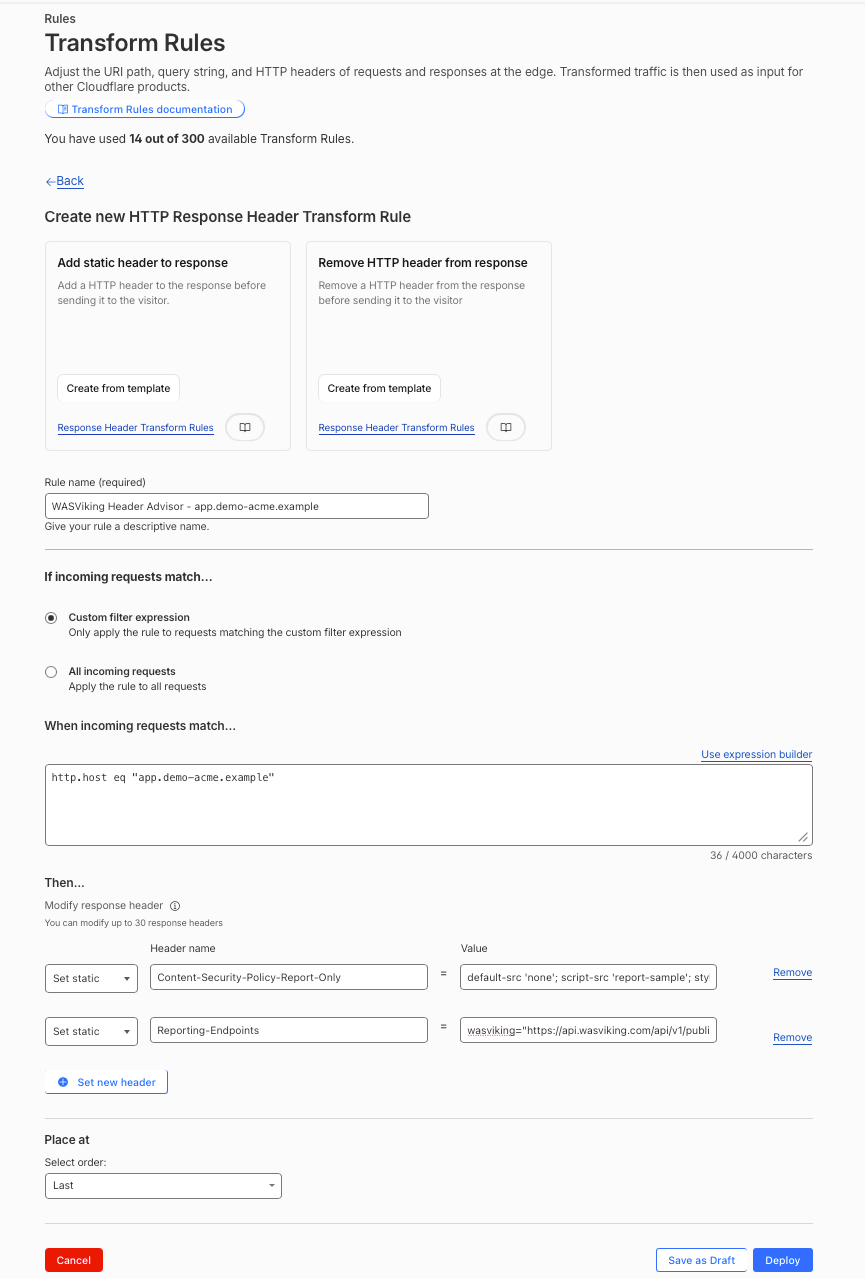 One rule per hostname: the expression matches the host, the two rows carry the header names and values copied from the portal, and the rule is placed last so it wins over older ones.
- Rule name:
WASViking Header Advisor - <hostname>. Ignore the two templates at the top of the page; fill in the form below them. - If incoming requests match: keep Custom filter expression. In
the builder set Field to Hostname, Operator to equals and
Value to your hostname. The link next to the field switches
between the builder and the plain editor (Edit expression and
Use expression builder); in the editor the expression is
http.host eq "<hostname>". - Then → Modify response header: choose Set static. Use the Copy name and Copy buttons in the portal and paste each header name in Header name and each value in Value, exactly as they are, quotes included. Click Set new header for the second row.
- Place at: leave Last.
- Click Deploy. Save as Draft does not publish the rule.
Two mistakes worth a second look before you deploy: the Value of
the Reporting-Endpoints row is the wasviking="https://..." string,
not the header name again; and the hostname in the expression is the
one you added to the advisor, so www and the apex are two different
rules if you advise both.
Google Cloud Load Balancer
Response headers are set on the backend service of the external HTTPS
load balancer. The portal gives you the gcloud command with the
--custom-response-header flags for that hostname. The flag replaces
the whole custom header list, so include any custom response headers
the backend already has.
nginx, Apache and IIS
The portal renders the exact configuration lines: add_header for the
server block in nginx (put them in every location that already uses
add_header, because a location-level add_header replaces the
server-level ones), Header always set for Apache, and the
customHeaders entries for web.config in IIS. Reload the server after
the change.
Express, Next.js, Django, Spring Boot and ASP.NET Core
When the header is easier to set in the application, the portal renders the middleware or configuration snippet for each framework, with the values already escaped for that language. Deploy the application as usual.
Whatever the platform, the two header values are the same. Prefer the edge when you have one: the header goes live in seconds, without a release.
Step 3: Confirm the header is live
Open the application in a browser. The advisor recognises the header from the browsers' own reports within a few minutes and the page refreshes on its own. Check header fetches your home page and reads the headers it sends right now, which is the fastest way to confirm the rule before any user visits.
If the status stays on Waiting for the first report, the rule is usually still a draft, the expression matches a different hostname, or the header name lost its suffix.
Step 4: Watch the learning window
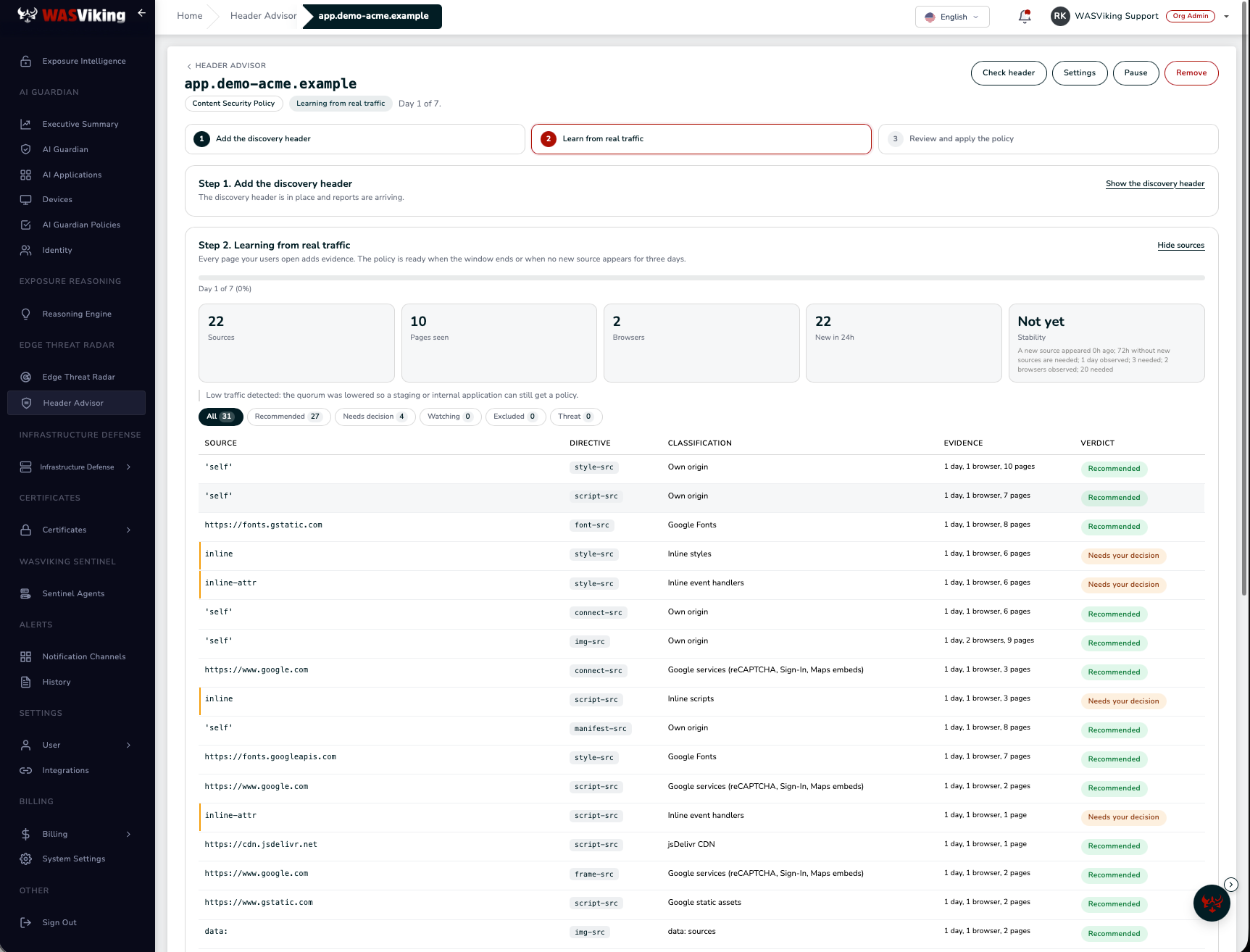 Day one of the learning window. Every source carries its directive, its classification, the evidence behind it and a verdict.
The step shows the day counter, the number of sources, pages seen, distinct browsers, sources new in the last 24 hours and whether the evidence is stable. The table underneath lists every source:
- Recommended sources reached quorum and passed the reputation check. They go into the policy.
- Needs your decision marks inline scripts, inline event handlers,
inline styles,
eval, blob workers and hosts under frequently abused top-level domains. The proposal asks you what to do with each. - Watching sources are below quorum. They are not proposed yet.
- Threat sources are look-alikes of your domain, address literals or sources pulled by addresses Edge Threat Radar flags. They are never proposed.
Documented services are completed automatically: when the browsers report Google Tag Manager, the directives its documentation requires are added even if the learning window never saw them.
A staging or internal application with fewer than ten browsers runs in low-traffic mode, with a quorum of one, so it can still get a policy. Settings on the advisor lets you change the learning window and the quorum.
Step 5: Review and approve the policy
When the window ends, or earlier when the evidence is stable, the advisor moves to Step 3: Review and apply the policy and, if you opted in, the Header Advisor event reaches your notification channels.
The proposal shows the policy one directive per line and its grade:
Strong, Partial, Weak or Missing, with the reason. Each
decision card lists the options with their impact. Hashes for inline
scripts and styles are computed from your pages when the hostname is
reachable; a per-response nonce is offered when the application can
emit the header itself; unsafe-inline is the pragmatic fallback and
the grade says what it costs. The policy updates as you change the
cards.
Click Approve this policy. The version is recorded with its decisions and evidence and becomes the reference for deployment detection and drift.
Step 6: Roll out in two moves
The approved policy comes with two tabs: Copy as report-only (candidate) and Copy enforced, each with the same per-platform walkthrough as the discovery header.
- Candidate. Replace the discovery header with the approved policy,
still as
Content-Security-Policy-Report-Only. The browsers now report only what the policy would block. WASViking recognises the policy from the reports and marks the advisor Candidate. Let it run for three clean days; anything it reports in that window is either a source to add or content that does not belong. - Enforce. Rename the header to
Content-Security-Policy. Keep the reporting directives, they are how drift and injections keep being detected. The advisor becomes Enforced and shows In sync with the approved policy.
Day two: keeping the policy current
- Update needed. A legitimate source that appeared after the deployment and reached quorum shows under Review changes with a diff for the next version. Select the sources, click Approve vN with the selected sources, copy the new value to your edge or origin. The advisor marks it in sync once the browsers report it.
- Threat signals. An injected inline script, a look-alike domain or a source pulled by attacker addresses appears under Threat signals with severity, page and sample. Investigate, then Acknowledge. Nothing in that list is ever added to a policy.
- Pause and Remove. Pause ignores reports while the header can stay in place; Remove deletes the advisor and its evidence. Remove the header from your edge or origin as well.
- Alerts. Enable the Header Advisor event on each channel under Notification Channels to be told when a policy is ready, an update is waiting or a threat signal appears.
Troubleshooting
| Symptom | Cause | What to do |
|---|---|---|
| Stays on Waiting for the first report | Rule saved as draft, expression on another hostname, header name without -Report-Only. |
Deploy the rule, check the expression, copy the names again. Use Check header. |
| Check header says the hostname does not resolve | The hostname has no public DNS record, or resolves to a private address. | Check header needs a public hostname. Learning still works from the browsers. |
| Reports are dropped as foreign | Browsers on www report to an advisor for the apex, or the reverse. |
Advise the hostname users actually open, or one advisor per hostname. |
| The policy is ready with very few sources | Low traffic, or the learning window ran on a page nobody visited. | Extend the learning window under Settings, or wait for the stability signal. |
| A legitimate provider is missing after enforcement | It appeared after the learning window. | It shows under Review changes once it reaches quorum; approve the update. |
| Application breaks right after the discovery header | The header was deployed as Content-Security-Policy. |
Rename it to Content-Security-Policy-Report-Only. The discovery policy is never meant to enforce. |