
Bring your internet-facing assets under management
Cross the Attack Surface with Infrastructure Defense. See which of the internet-facing assets you own are served by a host you manage, which are not, and take each unmanaged one from "we found this exposed" to "this is now under control" in a few clicks.
Attack Surface discovery tells you what the internet can see of your organization. Infrastructure Defense tells you what is running inside the servers you manage. This guide connects the two: for every internet-facing asset you own, WASViking® works out whether a host you manage serves it, labels the asset with a management state, and gives you the next step for the ones that are not covered yet. By the end you will read one sentence on the Command Center ("N externally exposed assets are not currently protected by Infrastructure Defense"), open the list behind it, and bring those assets under management one by one.
Before you start
You need Infrastructure Defense enabled for your organization and at least one of the following in place:
- A Target or a promoted asset in your Attack Surface. Coverage only looks at assets you own: the domains you seeded as Targets and the discoveries you promoted in Discovery. An asset still waiting for triage is never counted as unprotected, so triage first (see Targets and assets).
- Optionally, hosts already enrolled with the Sentinel Host agent or discovered by a Sentinel Probe (see Set up Infrastructure Defense and Set up Sentinel Probes). Without any host, every owned asset simply shows as unmanaged, which is a perfectly honest starting point.
Reading the coverage needs the View permission on Infrastructure Defense. Linking an asset to a host by hand and running a recheck need Manage.
What the four management states mean
Every host and every internet-facing asset carries one of four states. The same rule is used on every screen, so the number on the Command Center, the chip on the Assets list and the badge on an asset detail never disagree.
| State | What it means | What is counted |
|---|---|---|
| Fully managed | A Sentinel Host agent reports for the host and its policy keeps every capability on: inventory, vulnerability assessment, configuration assessment and patch management through Resolve. | Agent, Inventory, Vulnerabilities, Configuration, Patch |
| Partially managed | Something reports, but at least one capability is missing: an agent under a policy that leaves a capability off, an operating system Resolve does not execute on yet, or a Sentinel Probe that inventoried the host with credentials (inventory and vulnerabilities, but no configuration or patching). | The capabilities that are actually on |
| Unmanaged | Nothing reports. The host was only seen on the network by a probe, the agent is enrolled but silent, was deactivated or removed, or the asset resolves to a public address that no enrolled host owns. | Nothing |
| Unknown | Only for internet-facing assets: nothing could be matched from outside. The asset is served through a CDN or WAF (the origin is invisible), the name did not resolve, or it is hosted somewhere you do not manage. | Not decided yet |
Liveness is a separate signal. A fully managed host that is offline right now is still fully managed; the Assets list shows both.
Step 1: own your attack surface
Coverage starts from the assets you own, so the first step is to make sure the inventory reflects that. Open Discovery under Assets and promote the discoveries that belong to you; leave third-party services as third party and ignore what is not yours. Domains you registered as Targets are owned already.
Two more things happen behind the scenes. Names that were discovered without an address (subdomain monitoring and the SSL check record where a name came from, not where it points) are resolved by the platform, and only names that resolve to a public address count as internet facing. A name and its address are one story: an IP address asset that is the address of an owned name is folded into the name, so one server never counts twice.
Step 2: read the External attack surface panel
Open Infrastructure Defense → Overview. In the Executive view, the fourth panel is External attack surface: how many internet-facing assets you own, split into the four states, and one sentence that says how many of them are not protected by Infrastructure Defense.
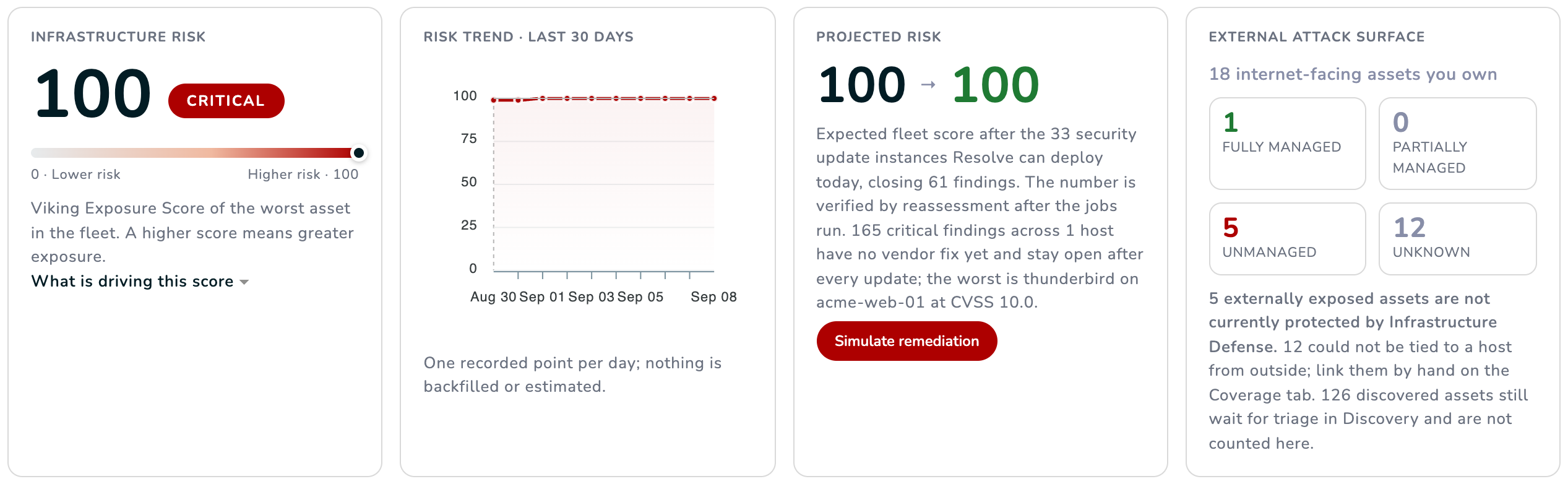 ACME owns 18 internet-facing assets: one is fully managed, five resolve to public addresses no enrolled host owns, twelve sit behind a CDN or WAF and could not be tied to a host yet.
Each counter is a link into the list behind it. The panel also tells you how many discovered assets still wait for triage in Discovery: those are not counted anywhere on this panel until you decide whether they are yours.
Step 3: open the Coverage tab and start with Unmanaged
Click the Unmanaged counter, or open Infrastructure Defense → Assets and switch to the Coverage tab. The list leads with what needs a decision: unmanaged assets first, then unknown, then partially and fully managed.
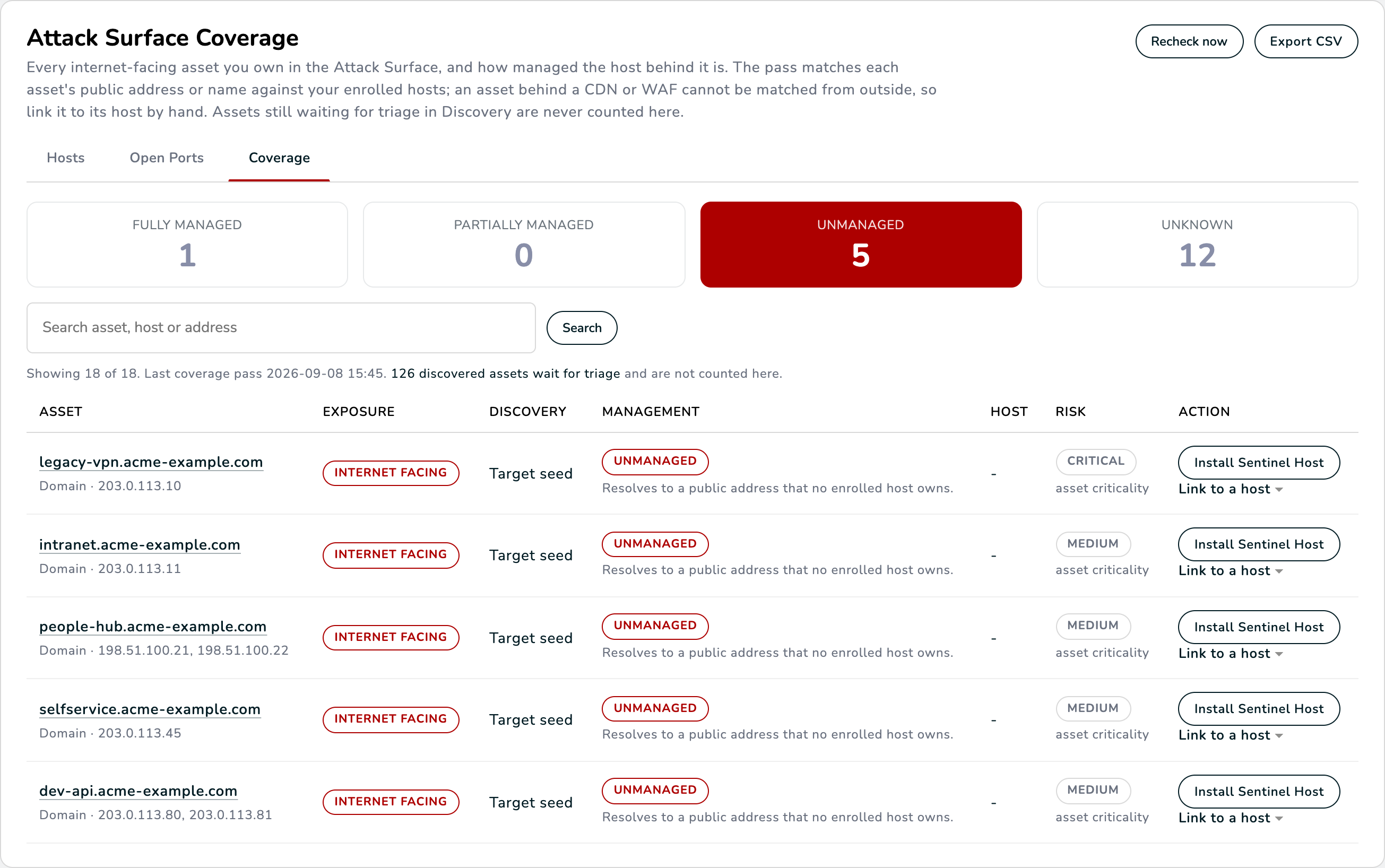 The Coverage tab. Every row is one asset you own; the Management column says how covered the host behind it is, and Action is the next step.
Each row reads left to right:
- Asset: the name or address, with the public addresses it resolves to and the ports the Attack Surface observed on it.
- Exposure: Internet facing when it resolves to a public address. "Through a CDN or WAF" means the address belongs to an intermediary, not to your server.
- Discovery: where the Attack Surface learned about it (a Target seed, a scan, subdomain monitoring, the SSL check).
- Management: the state and the reason, in plain words. When a host is matched, the reason says how: the public address is assigned to the host, the host identifies itself by that name, or the host's own exposure evidence already named it.
- Host and Risk: the enrolled host that serves the asset and its Viking Exposure Score. With no host, Risk falls back to the criticality you set on the asset.
- Action: the next step that fits the row.
Use the tiles to filter by state and the search box to find one asset, a host or an address. Export CSV honors the same filters.
Step 4: bring an asset under management
The Action column proposes the step that fits each row; the same step appears on the host's detail page as Bring under management.
- Install Sentinel Host for an asset served by a server nobody enrolled yet, or for a host the probe found that can run an agent. Follow Set up Infrastructure Defense: create an activation key and run the install command on that server.
- Add probe credentials for a device that will never run an agent (a switch, a printer, an appliance). An authenticated scan over SSH or WinRM turns it from Unmanaged into Partially managed, with inventory and vulnerabilities. See Set up Sentinel Probes.
- Review policy for a Partially managed host whose policy leaves a capability off. Turning the capability on under Infrastructure Defense → Policies changes the state on the spot.
- Open Sentinel Hosts for a host whose agent was deactivated or revoked: reactivate it or enroll again.
You do not need to come back and tell the platform what you did. When the new agent sends its first inventory, the coverage of your organization is rechecked right away and the asset moves to the state its host earned. The full pass also runs once a day. Recheck now on the Coverage tab runs it on demand.
Step 5: link an asset behind a CDN or WAF to its host
An asset that shows Unknown with "Served through a CDN or WAF" cannot be matched from outside: the public address is the edge provider's, and the origin server behind it is invisible to the Attack Surface. You know which host serves it, so tell the platform.
On the row, open Link to a host, type the hostname exactly as the Assets list shows it (the field suggests your enrolled hosts) and click Link.
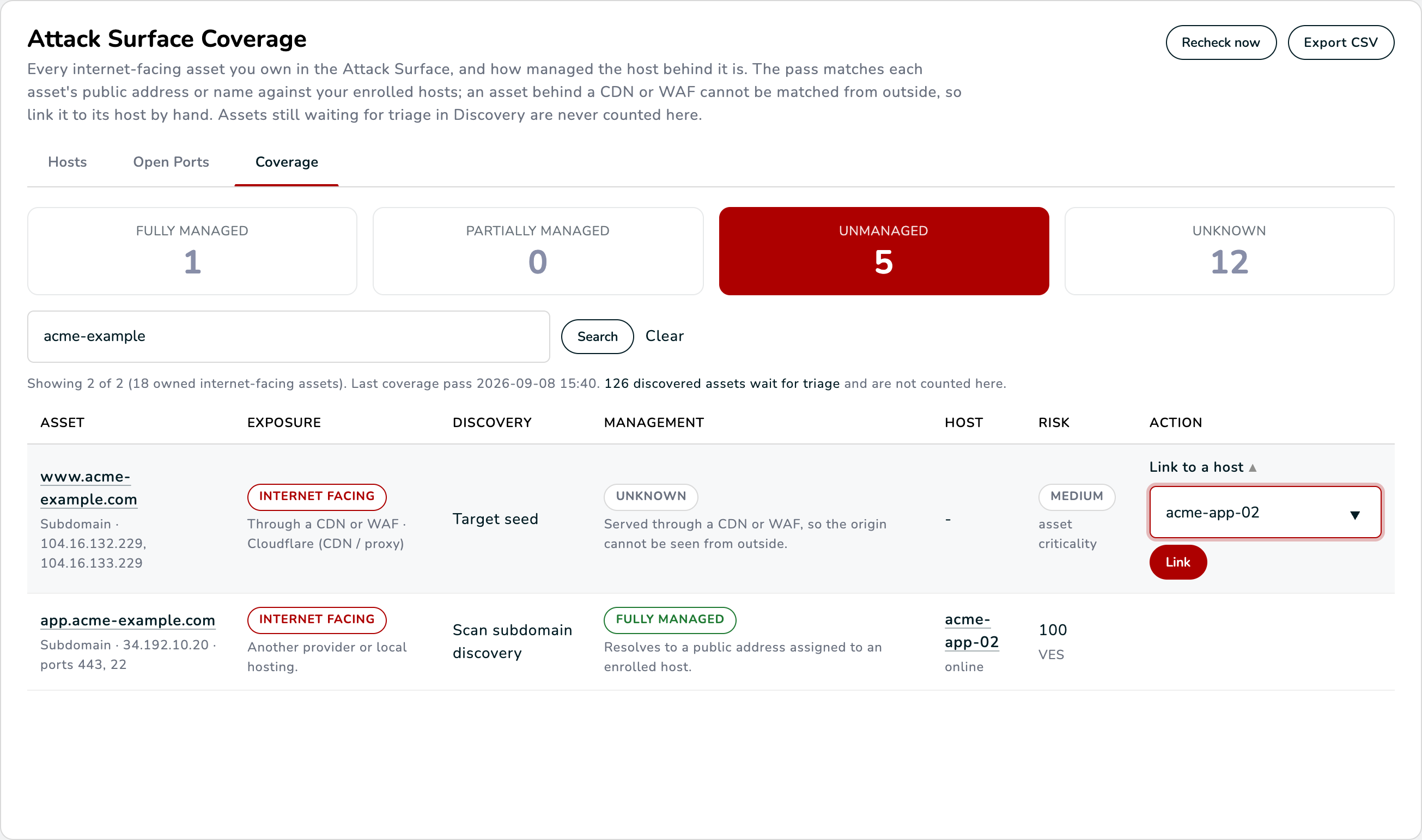 www.acme-example.com sits behind a CDN. The form links it to acme-app-02, the host that serves it.
The asset now follows that host: its management state is the host's, the reason reads "Linked to a host by your team" with the name of who did it, and the choice is recorded in the audit log. A manual link always wins over the automatic matching until someone clicks Unlink, which hands the asset back to the next coverage pass.
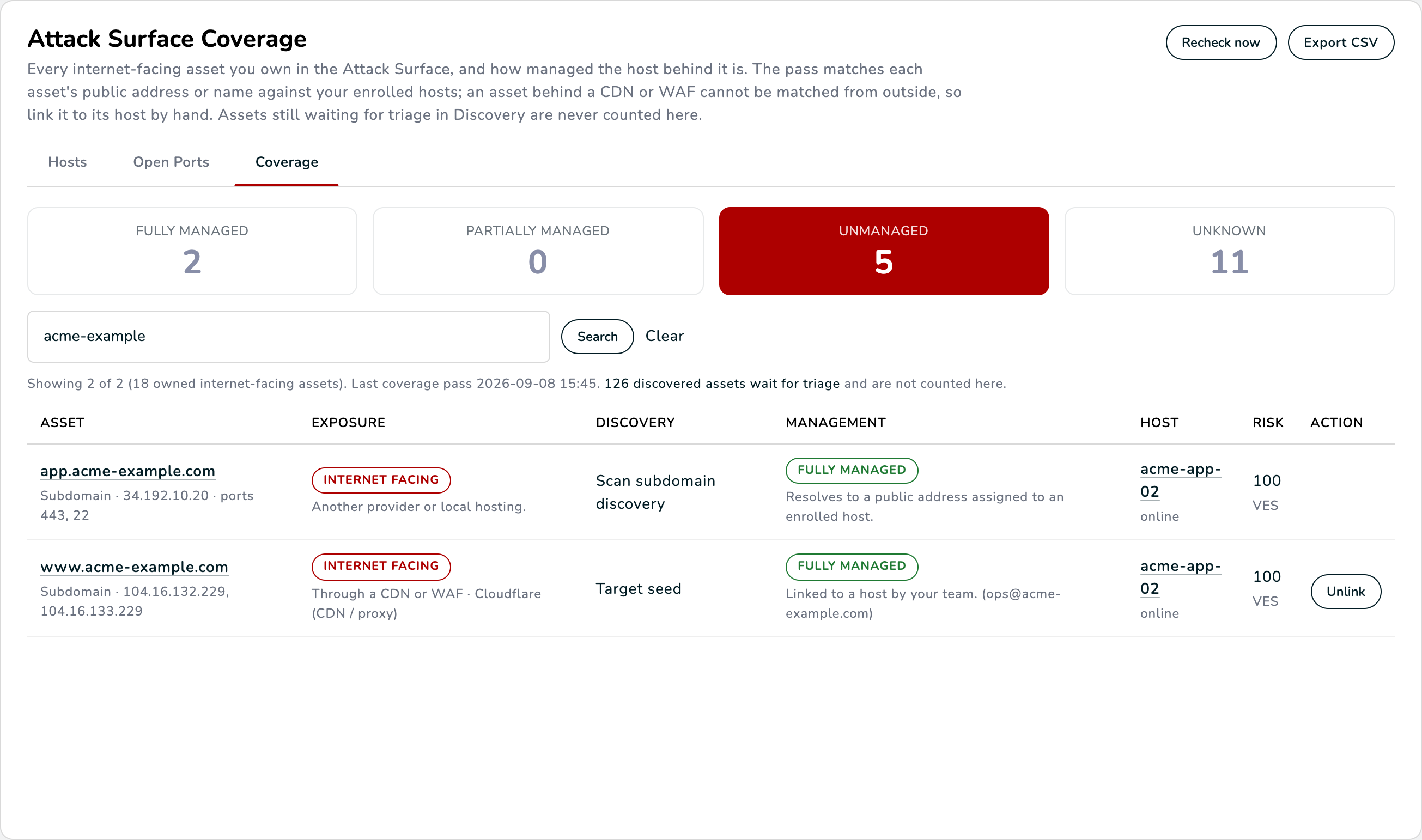 After the link, both ACME assets are fully managed: one matched automatically by its public address, one linked by hand.
The same link is the right answer when a load balancer or a NAT address sits in front of the server, because the public address is then not assigned to the host itself.
To link several assets to the same host at once, tick their rows, type the hostname in the bar above the table and click Link selected. Unlink selected hands the ticked manual links back to the automation.
When an unmanaged asset resolves to an address inside a network you have authorized a Sentinel Probe to scan, the next step reads Scan with a Sentinel Probe instead: the probe can reach it from inside and, with credentials, inventory it.
Step 6: verify on the host and in the inventory
Open the host from the Host column. Its detail page has a Management and Exposure card: the state, a checklist of the five capabilities, the next step when one is missing, and on the exposure side the public addresses assigned to the host, the internet-facing assets it serves, the evidence behind the Internet exposed flag and any active attack traffic the edge blocked against it in the last days.
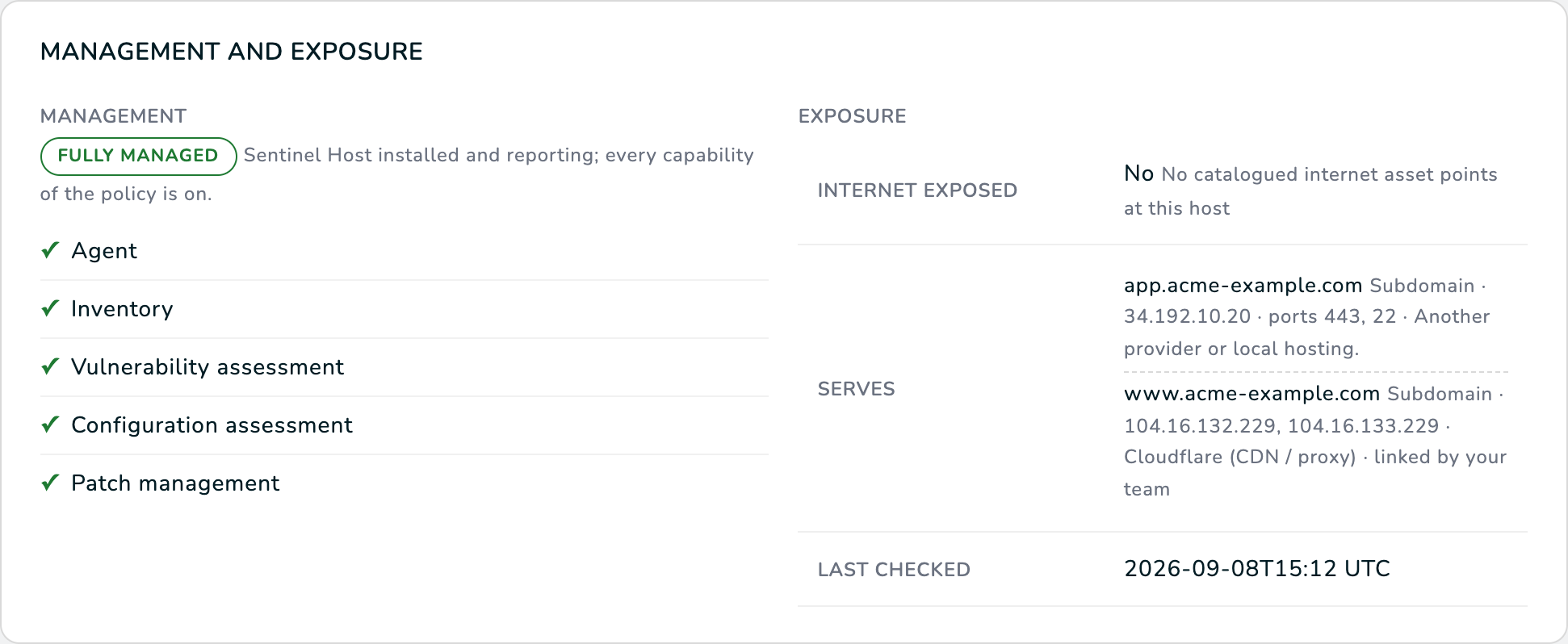 acme-app-02 is fully managed and serves app.acme-example.com and www.acme-example.com, one matched by address and one linked by hand.
The same verdict is visible from the other side. In Assets → Assets (the inventory), the detail panel of an internet-facing asset carries an Infrastructure Defense section with the state, the host and a link straight to the Coverage tab, so whoever works from the attack surface sees whether the asset is protected without changing screens.
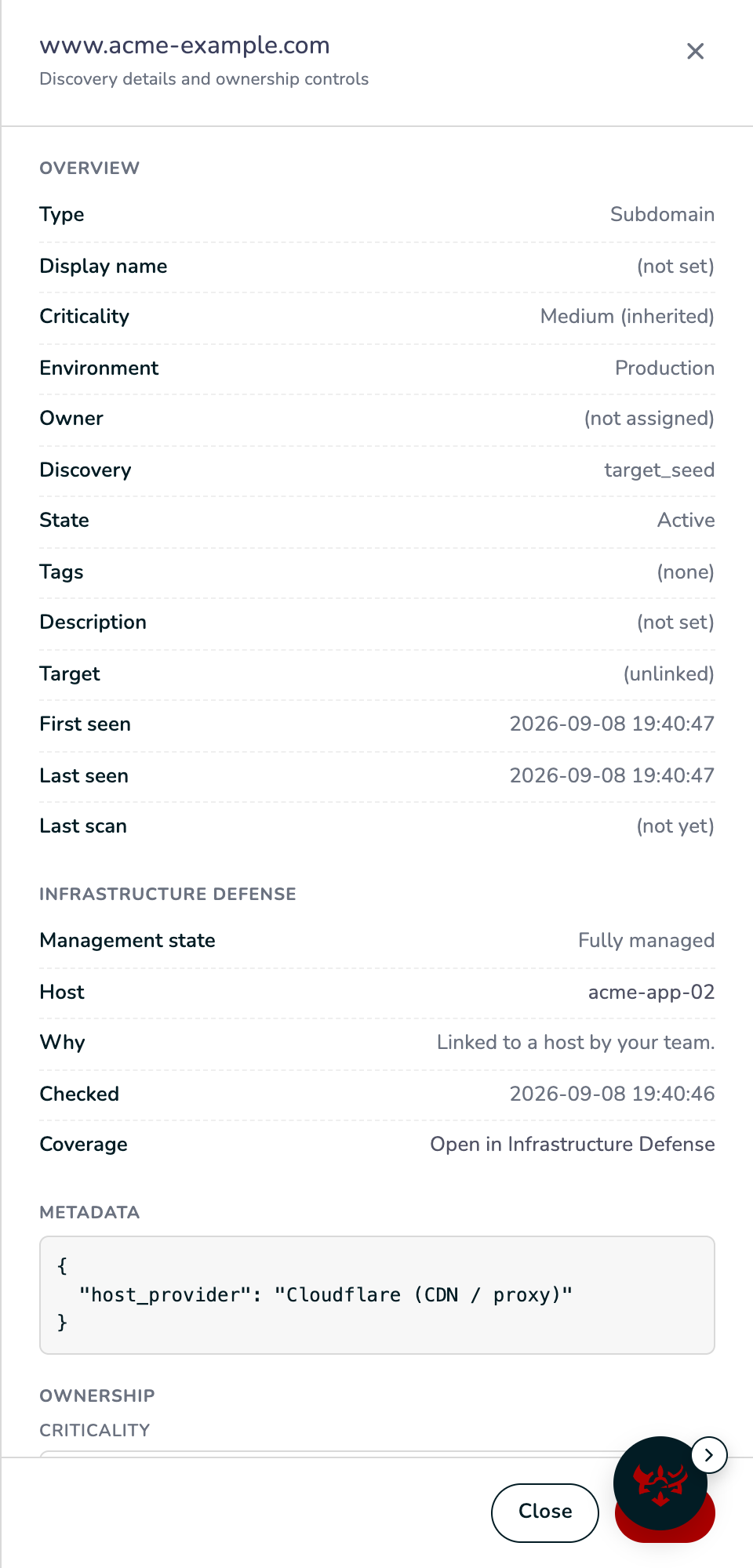 From the attack surface side: the inventory panel of the asset carries the same verdict and the host behind it.
Day two
- The Assets list of Infrastructure Defense has a Management column and a Management facet, and the Unmanaged chip under Needs attention counts by the same rule as the Command Center tile.
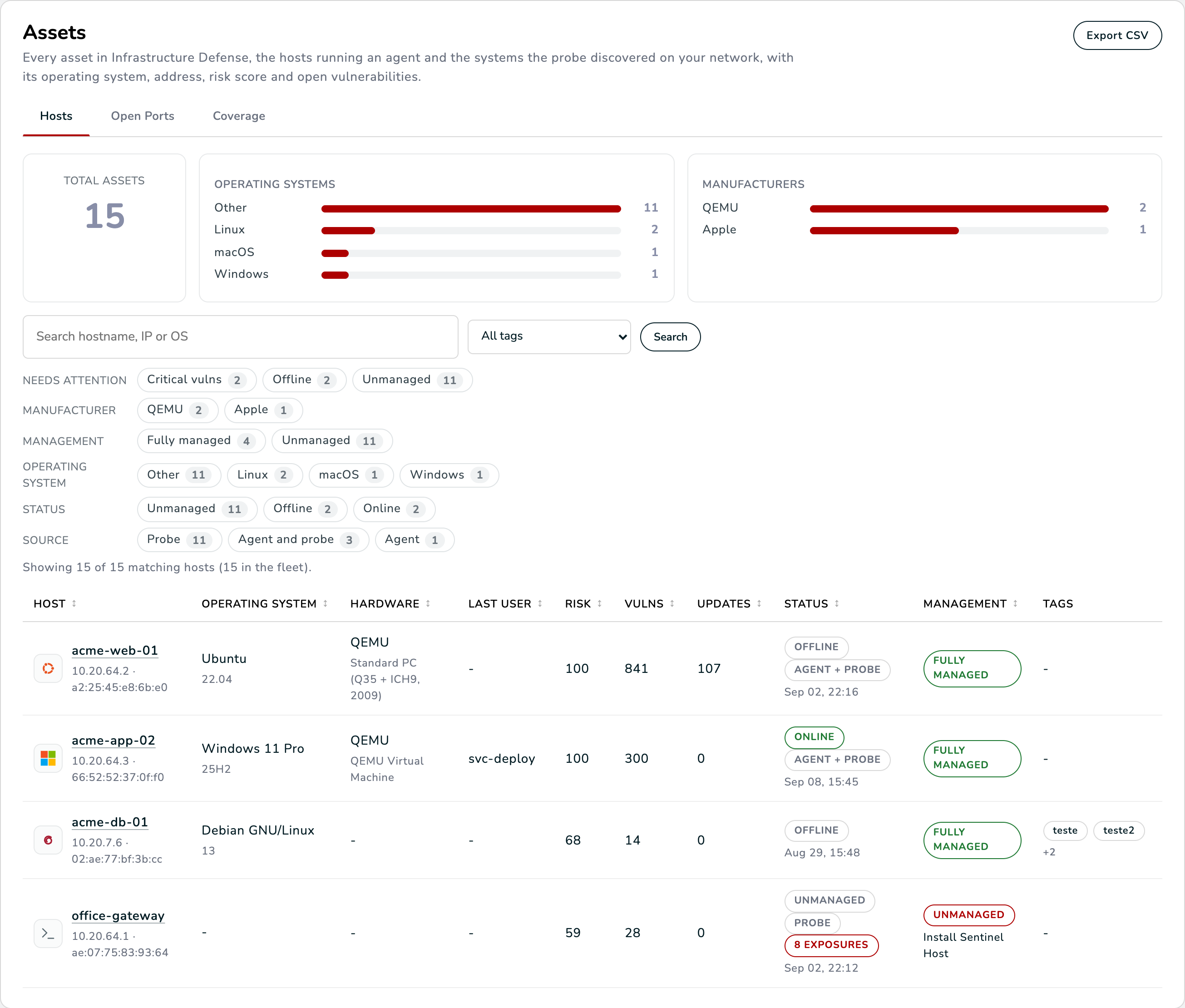 Hosts side: the Management facet and column use the same four states, so a probe-discovered device that nobody manages is visible at a glance.
- Coverage is recomputed once a day for your whole organization, and again whenever a host sends its first inventory. Linked assets are never overwritten by the pass.
- Every state is derived from what reports today. Deactivating an agent, revoking it, or removing a capability from a policy changes the state on the next page load; there is nothing to reset.
- Export CSV on the Coverage tab gives you the same rows with the matching reason, the host, its score, the public addresses and the provider, for a spreadsheet or an auditor.
- The Command Center chip unprotected assets · 24h counts the assets that became unmanaged in the last day and opens them; the Coverage tab's Changed in the last 24 hours filter is the same window.
- The Unprotected Internet Asset alert sends one digest per coverage pass to the channels you enable under Settings, Alert Destinations (email, Slack, Teams, webhook) whenever assets you own become unmanaged: the names, the total and a link to the Coverage tab. Assets behind a CDN or WAF and assets you linked by hand never alert.
- Download report on the Overview includes an External attack surface section with the four counts and the unprotected assets, for the stakeholder who reads the PDF instead of the portal.
Troubleshooting
An asset I own shows Unknown. Three causes, each spelled out in the Management column. "Served through a CDN or WAF": link it to its host (Step 5). "The name did not resolve": the record may be gone; check DNS or retire the asset in Discovery. "Waiting for the next coverage check": a link was just removed or the asset was just promoted; use Recheck now or wait for the daily pass.
The host is fully managed but its asset shows Unmanaged. The asset resolves to a public address that is not assigned to the host: a load balancer, a NAT gateway or a reverse proxy in front of it. Link the asset to the host by hand.
The Command Center sentence counts fewer assets than Discovery shows. By design. Discovered assets waiting for triage are never counted as unprotected; promote the ones that are yours and they join the panel on the next pass. Third-party and ignored assets stay out for good.
Two rows for the same name disappeared into one. The inventory can hold the same value as a domain seeded from a Target and as a subdomain found by a scan. Coverage keeps one row per name; the inventory panel of either row shows the shared verdict.
A private address shows up as an asset but not in Coverage. Only names and addresses that are reachable from the internet are internet-facing assets. Private, reserved and host-local names are left out of Coverage on purpose; the probe is the tool for what lives inside the network.
What to look at next
- Infrastructure Defense in Capabilities explains how the Viking Exposure Score is built and how internet exposure proven by the Attack Surface feeds it.
- Set up Infrastructure Defense walks through enrolling the first servers, and Set up Sentinel Probes covers the devices that will never run an agent.
- Targets and assets describes how the Attack Surface is discovered and triaged.