
Mitigate a finding without a patch
Close a misconfiguration or contain a vulnerability with no fix yet by changing the host itself, from WASViking Infrastructure Defense. Built-in mitigations, workarounds for known vulnerabilities, actions before and after a patch job, reviewed scripts and software changes, each one approved, verified by the next inventory, watched for drift and undoable.
Some findings are not closed by an update. A posture control fails because a registry value was never set, a vulnerability has no vendor fix yet, a database service has to stop before its update and start again after it. The Mitigation screen of Infrastructure Defense makes those changes on the host through the Sentinel Host agent, with the same discipline Resolve applies to updates: every change is a job, a person approves it, the agent records what it replaced, the next inventory proves it held, and the change can be undone. By the end of this guide you will have applied a built-in mitigation, read its verdict, contained a vulnerability that has no fix, attached actions to a patch job and seen where scripts and software changes fit.
Before you start
- Infrastructure Defense enabled, with the Sentinel Host agent reporting from the hosts you want to change.
- The permissions on Infrastructure Defense:
- Remediate to apply a mitigation, run an approved script, install or remove software and undo a mitigation;
- Manage and Remediate to attach actions to a patch job;
- Author mitigation actions to add scripts to the library and turn scripts on for the organization;
- Approve to sign off jobs and review scripts.
The Admin and Manager roles carry all of them by default. - A recent agent. Each kind of change needs the release that brought it; the screens offer only what the host's agent runs and show Agent update required otherwise.
| What you want to do | Platform | Agent release |
|---|---|---|
| Registry values and services, the built-in Windows mitigations for controls | Windows, Linux (services) | 0.1.46 or later |
| Actions before and after a patch job, approved scripts | Windows, Linux, macOS | 0.1.46 or later |
| Install and remove software by name or package | Windows, Linux | 0.1.50 or later |
| Install from an installer file, workarounds for known vulnerabilities | Windows | 0.1.50 or later |
| Kernel parameters, the built-in Linux mitigations for controls | Linux | 0.1.50 or later |
| Secret values for scripts | Windows, Linux, macOS | 0.1.50 or later |
Update agents from Infrastructure Defense → Sentinel Hosts.
What a mitigation can change
| Change | Platforms | Undo |
|---|---|---|
| Set or delete a registry value | Windows | Restores the value it replaced, or deletes it when there was none |
| Stop, start or set the startup of a service | Windows, Linux | Restores the previous startup and state |
| Set a kernel parameter and keep it across reboots | Linux | Restores the previous value |
| Run an approved script from your library | Windows (PowerShell), Linux and macOS (sh, bash) | The script's own undo script, when it has one |
| Install or remove software | Windows, Linux | None; said plainly before you confirm |
A change that needs a restart asks for one: the host restarts once, at the end of the job, when the host policy and the approver allow it.
The agent checks every change before touching anything and refuses the locations that would hurt the host or hand it to an attacker: the credential stores, its own service and folder, the classic startup and persistence points, the remote access you depend on, the package managers, the kernel and the boot chain. A refused change says why.
Step 1: apply a built-in mitigation
Open Infrastructure Defense → Mitigation. Available mitigations lists, for each host, the failing posture controls that a curated change fixes: turn off LLMNR, turn on LSA protection, require SMB signing, require Network Level Authentication for Remote Desktop, lock idle sessions, restrict anonymous enumeration and more on Windows; address space layout randomization, ptrace scope, SYN cookies, IP forwarding and the network kernel parameters on Linux. Each row says what the change does and the Side effect to read before applying it.
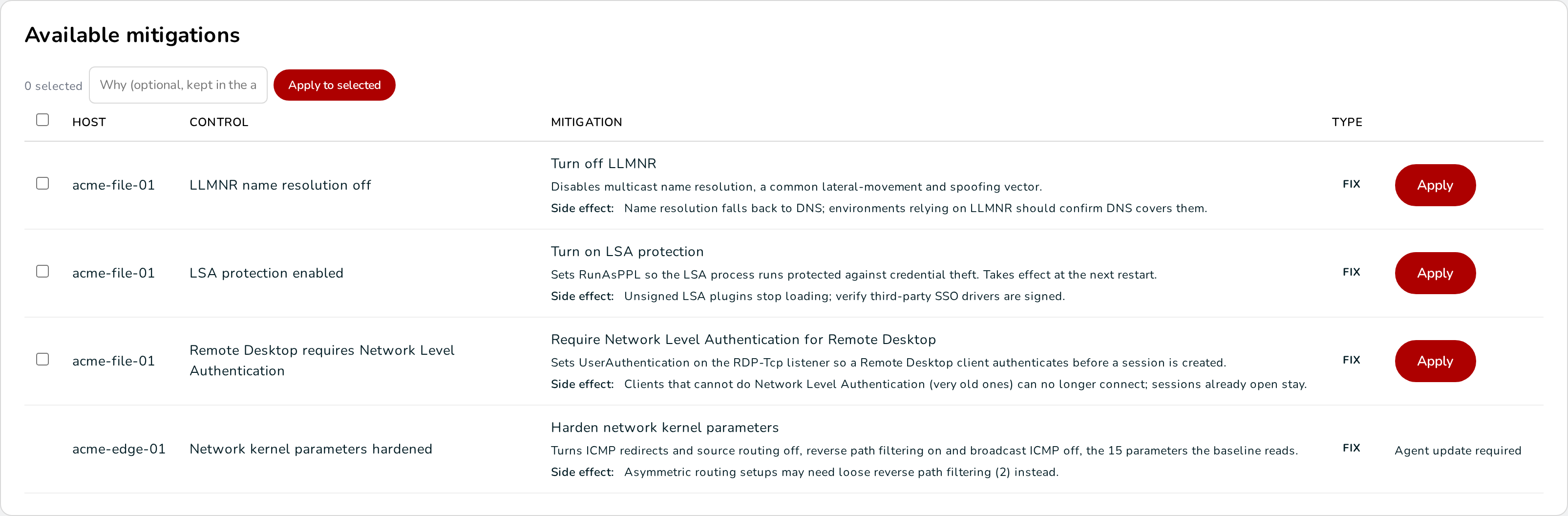
Press Apply on one row, or tick several rows (on one host or many) and press Apply to selected. A selection creates one job per host; hosts in different environments get separate jobs because each environment has its own approval rule. The reason you type goes into the approval record. The Configuration screen offers the same change with a Mitigate button next to the failing control.
Step 2: approve it and follow it
The job appears in Resolve and in Recent mitigation jobs at the bottom of the Mitigation screen. It follows the approval governance of the host's environment like any update: automatic, one person or a formal quorum, inside the maintenance window unless the approver runs it now. A job that carries a script or a software change is never approved automatically, whatever the rule says.

The agent applies the steps in order and reports each one with the value or state it found before and the one it left. One change runs at a time on a host, and every hold, restart and offline rule of Resolve applies.
Step 3: read the verdict and keep it watched
The job completes when the next inventory proves the change: Mitigation verified: 1 of 1 steps applied; 1 of 1 controls now pass. The posture finding closes the way it always does, by passing the check.
A verified mitigation stays watched. If something puts the old setting back, often a Group Policy refresh or a configuration management run, the next inventory marks it Reverted with the control that failed and when, the finding opens again, and a Mitigation Reverted alert goes to your channels. Apply it again, or fix whatever reverted it.
The host's asset page lists the same history in Mitigations on this host, with an Undo button per change.
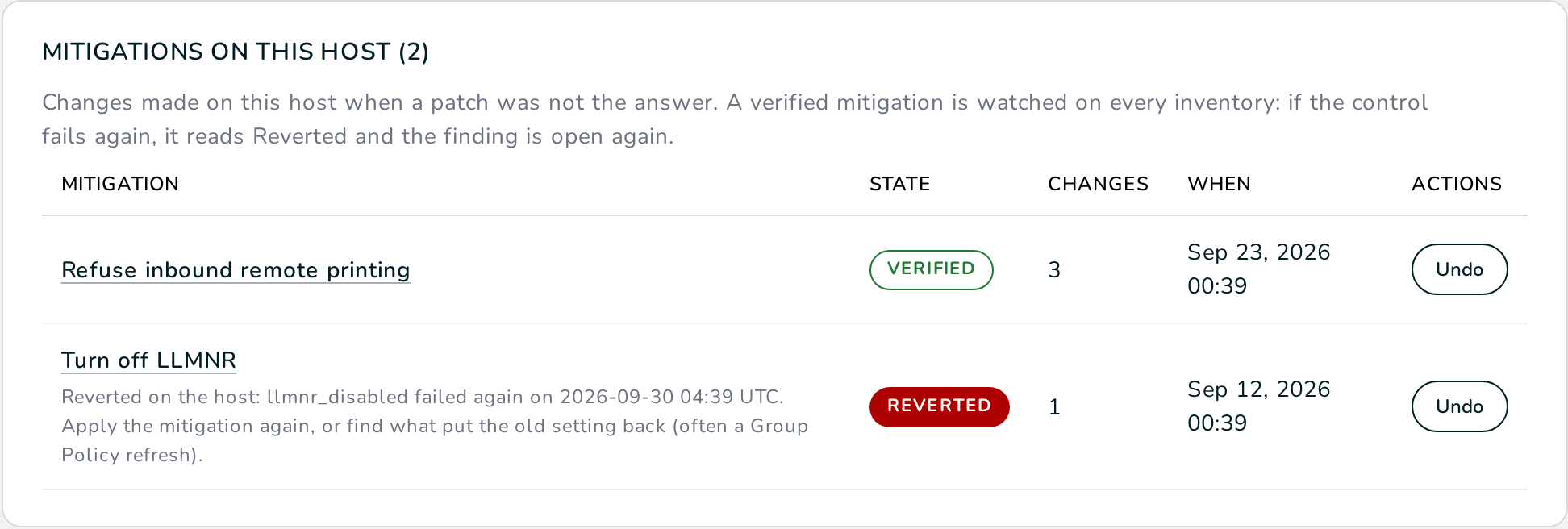
Undo creates a job from what the agent recorded before the change: the previous registry values, service states and kernel parameters, and the undo script of a script step. It needs a reason and follows the same approval as the change it reverses.
Contain a vulnerability that has no fix yet
For some vulnerabilities the vendor documents a workaround: a registry value or a service setting that closes the attack path until the update can be installed. WASViking® carries those workarounds for well-known Windows vulnerabilities, among them the remote Print Spooler path (CVE-2021-34527 and CVE-2021-1675), the MSHTML ActiveX path (CVE-2021-40444), SMBv3 compression (CVE-2020-0796), the DNS server overflow (CVE-2020-1350), Office cross-protocol navigation (CVE-2023-36884), the Remote Desktop pre-authentication path (CVE-2019-0708) and the legacy Equation Editor (CVE-2017-11882).
A vulnerability with a workaround shows a Mitigation available chip on the Vulnerabilities screen, and its page offers Mitigation options. The options screen puts the two answers side by side: Remediation, the vendor update where it exists, and Mitigation, the workaround with what it changes and its side effect, the hosts where the vulnerability is open and whether each one can take the change now.
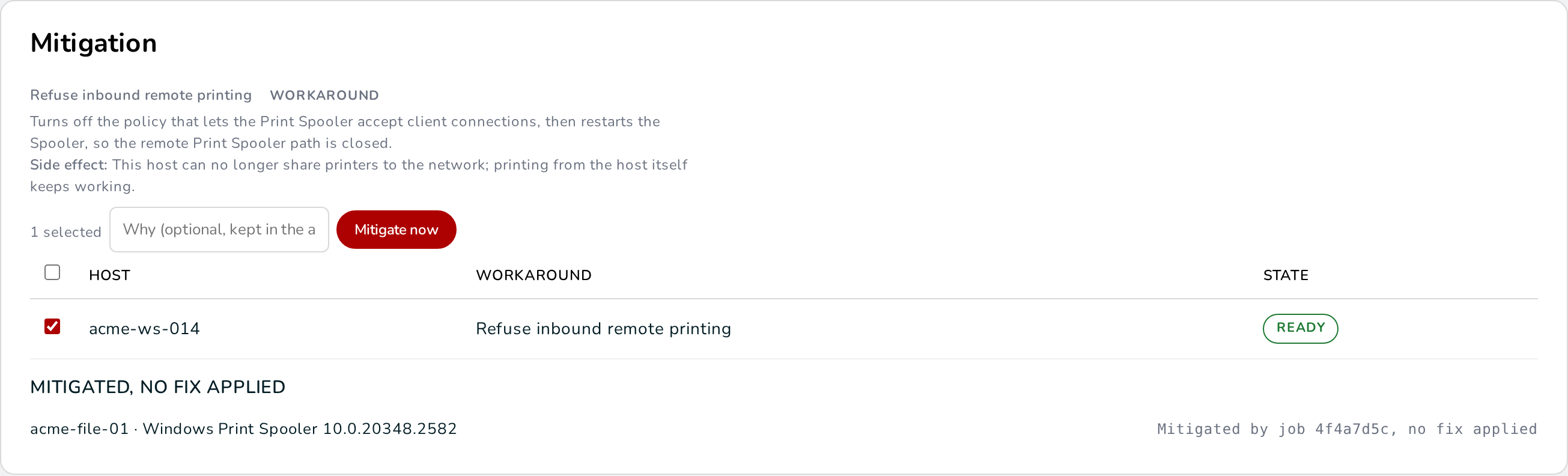
Tick the hosts and press Mitigate now. Once the next inventory proves the workaround on a host, the vulnerability on that host is marked Mitigated, no fix applied: it leaves the score the way an accepted risk does, it is listed apart under Mitigated, no fix applied on the options screen, and it opens again the moment the workaround is reverted or undone. Only a verified workaround sets it; nobody can pick it by hand as a risk acceptance. The agent reads the workaround back on every inventory, which is why it needs release 0.1.50 or later.
A workaround closes a path, the update closes the vulnerability. Install the update from Resolve when it exists.
Run actions before and after a patch job
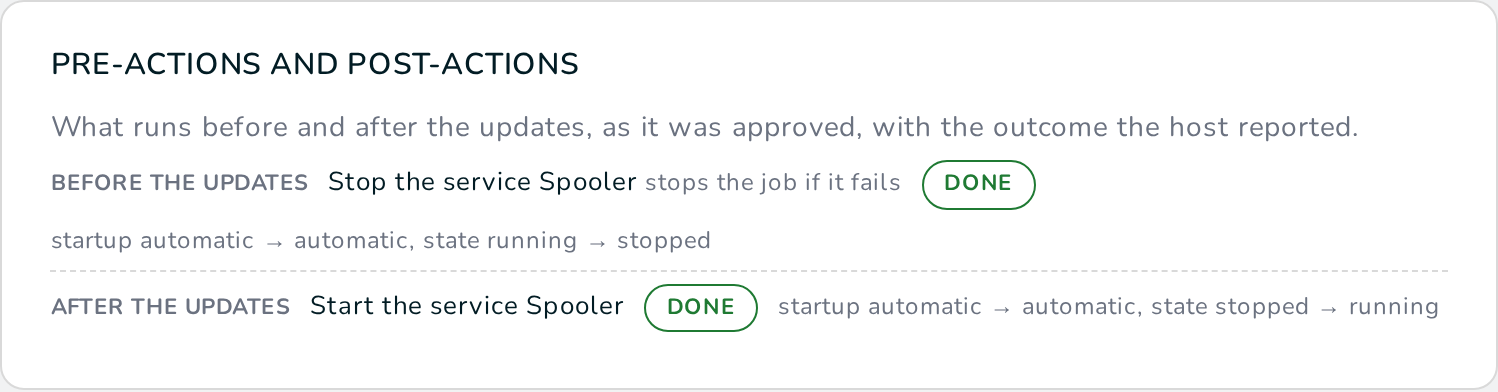
Some updates need the host prepared: a service stopped so its files can be replaced, a value set that the installer checks, a service started again afterwards. In Resolve, open Review on a recommended action and expand Pre-actions and post-actions. Add an action, choose when it runs (Before the updates or After the updates), the action and its fields, and tick Stop the job if this fails when the updates must not run without it.
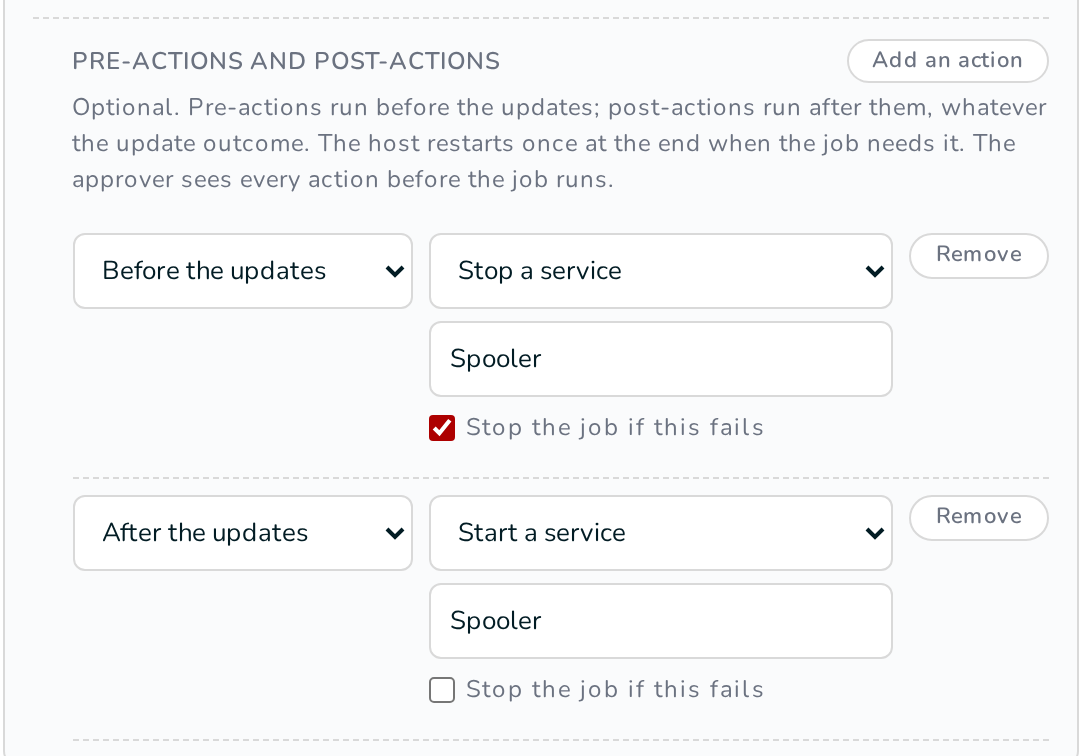
A job takes up to five pre-actions and five post-actions. They run in this order: pre-actions, the updates, post-actions, then one restart at the end when something asked for it and the policy allows it. Post-actions run whatever the outcome of the updates. A pre-action that fails with Stop the job if this fails stops the job before any update is installed, and the job says which action stopped it.
The approver sees every action before the job runs, in Resolve, in the approval e-mail and in the approval records export. The job page shows each action with the state the host reported before and after it.
A retry keeps the actions. A rollback job accepts them too.
Use scripts from your own library
When no typed change covers what you need, the Action script library on the Mitigation screen holds your organization's scripts. Scripts are off until someone with Author mitigation actions turns on Allow scripts for this organization, and the confirmation says what that means: an approved script can do anything the system account can do on the host.
- Add a script or a new version. Give it a name, the platform, the interpreter (PowerShell on Windows, sh or bash on Linux and macOS), the body (up to 20 KB), the parameters and, optionally, an undo script. Saving under an existing name creates the next version; versions never change after they are saved.
- Review. Every version starts In review. A person with Approve who is not the author reads it and approves it. Small teams can turn on Allow single-person review; the switch is recorded in the audit trail.
- Run on a host, or attach the script as a pre-action or post-action. Only approved versions can be used, only on hosts of their platform, and the job still needs its own approval. The job is signed for that host: a script sent to another host, or edited after the approval, does not run.
Parameters. Declare them as a list, for example
[{"name": "SERVICE_NAME"}, {"name": "API_TOKEN", "secret": true}]. Each
one reaches the script as the environment variable WV_PARAM_ followed by
its name in upper case, WV_PARAM_SERVICE_NAME and WV_PARAM_API_TOKEN
here. Plain values are typed as name=value lines when you run the
script. A secret parameter gets a password field: its value is
encrypted the moment you submit it, for that one host, with a key only that
host holds. WASViking® never stores it in readable form, the
approver never sees it, and it is masked out of the script output the job
keeps.
Exit codes. The script tells the job how it went:
| Code | Meaning |
|---|---|
| 0 | Success |
| 10 | Success, the host needs a restart |
| 11 | Failure, the host needs a restart |
| 12 | Failure that stops the job (the remaining actions do not run) |
| 101 | Nothing to do here; reported as skipped, not as a failure |
| Any other | Failure |
A step that runs longer than the policy allows is stopped together with every process it started. The job keeps the last part of the output, with values that look like secrets masked.
Keeping scripts off a host. The host policy decides whether approved
scripts may run on its hosts. A sensitive host can also refuse scripts
whatever the cloud says: add allow_remote_scripts: false to
configs/config.yaml in the agent's data directory and restart the agent.
The asset page then says the host blocks scripts in its local
configuration, and no script job is created for it.
Install and remove software
Open a host's Installed Software page.
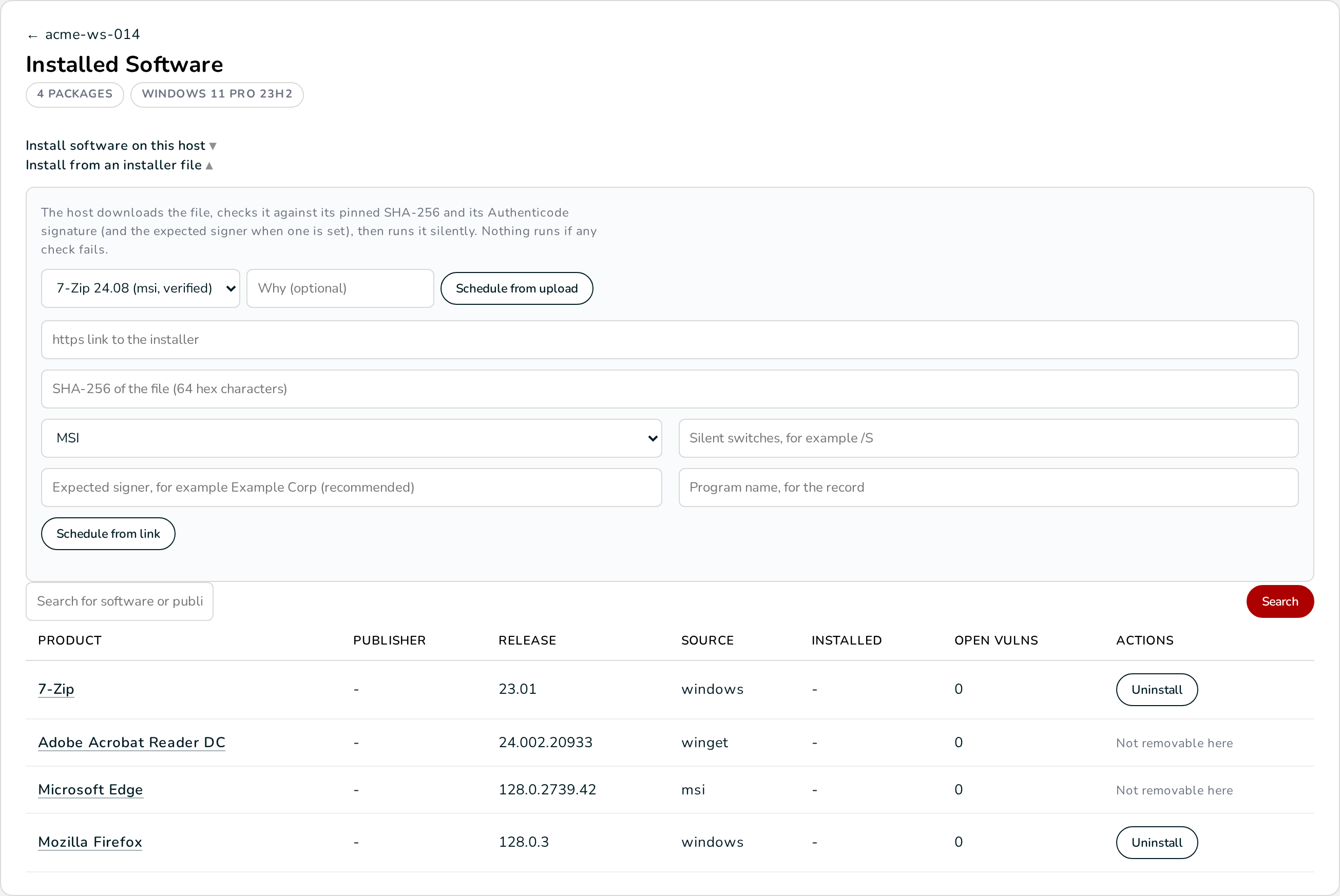
- Uninstall appears on a program the agent can remove unattended: on Windows, a Windows Installer product or a program that registered a silent uninstall command; on Linux, a package the package manager can remove without taking any other package with it. Protected software (the kernel, the boot and login chain, the package managers, the remote access, the agent itself) is never offered. The rest reads Not removable here with the reason.
- Install software on this host takes a winget package id on Windows or a package of the host's configured repositories on Linux, with an optional version.
- Install from an installer file (Windows) takes either an installer you uploaded in Sentinel Gateways → Installer uploads, or an https link with the file's SHA-256, its type (MSI or EXE), the silent switches and the expected signer. The host downloads the file directly over HTTPS (through the system proxy when one is set), checks it against the pinned SHA-256 and its Authenticode signature, and the expected signer when you gave one, then runs it silently. Nothing runs if any check fails.
A software change is signed for the host and never approved automatically. The next inventory proves it: the program is gone after an uninstall, and listed after an install. There is no automatic undo for software.
Set the limits in the host policy
In Infrastructure Defense → Policies, the Mitigation actions block of each policy decides:
- whether approved library scripts may run on these hosts (when scripts are on for the organization);
- the longest action step, from 1 to 180 minutes, for mitigation steps and for the actions of patch jobs.
Registry and service changes are never blocked by the script switch. A step that asks for a restart follows the policy's restart settings and the approver's choice, like an update does.
Day two
- Alerts. Mitigation Verified, Mitigation Failed and Mitigation Reverted reach your Slack, Teams, e-mail or webhook channels with the host and the change.
- Evidence. Export CSV on Recent mitigation jobs lists every
mitigation with its state and note. Export approval records on the
Resolve screen carries the actions of each job in its
host_changescolumn, with every approval decision. - Audit trail. Turning scripts on or off, saving, approving and retiring a script version, creating, approving and undoing a mitigation are audit entries like every other Resolve action. Secret values never appear in them.
Troubleshooting
A mitigation shows Agent update required. The host's agent does not run that kind of change yet. Update it from Sentinel Hosts; the table in "Before you start" lists the release each change needs.
A workaround shows Not available on this host. The host is not a Windows host that takes jobs, or its agent is older than 0.1.50.
The mitigation reads Reverted the next day. Something on the host set the old value again. On a domain-joined Windows host it is usually a Group Policy object that manages the same setting: change it there, or the mitigation will keep being undone at every policy refresh.
A job reads Partial. Some steps succeeded and others failed or a control still fails; the job page lists each step with its outcome and the reason.
A script does not appear under Run on a host. It is not approved yet, scripts are off for the organization, the policy of the host does not allow them, the host blocks them locally, or no host of the script's platform has a recent enough agent.
A secret parameter is refused. The host's agent is older than 0.1.50 and cannot open sealed values. Update it before running the script with a secret.
An installer job failed with a hash or signature message. The file the host downloaded is not the one you pinned, or it is not signed by the expected publisher. Check the SHA-256 and the signer, and that the link serves the same file every time.
What to look at next
- Roll back a change that misbehaved undoes a security update job the same way Undo reverses a mitigation.
- Sentinel Gateways explains the installer uploads a software install can use.
- Infrastructure Defense in Capabilities explains Resolve, the approval governance and how the Viking Exposure Score is measured before and after every change.