
Test Claude Code on Claude seats in VS Code
Try the Claude subscription mode of the WASViking AI Gateway on one computer before you distribute the managed settings file. A separate VS Code profile, the settings to paste, and six tests with what to expect in Claude Code and on Traffic.
Before you distribute the managed settings file to the whole team, you can try the WASViking® AI Gateway with Claude Code on one computer. This guide uses a separate VS Code profile, so only that window goes through the gateway, and ends with six tests that show what developers will see.
Before you start
- A gateway with the Claude subscription sign-in and the policies of Steps 1 and 2 of Protect Claude Code on Claude seats.
- VS Code on the computer, and a Claude account of your organization.
- To try with a personal Claude account, save the gateway with any organization ID, send the first test of Step 5, then add the ID that the gateway row on Workloads lists as refused, and send it again.
- Test data only. The examples use
AKIAIOSFODNN7EXAMPLE, the example access key from AWS's own documentation. Never use a real key or a real person's data in a test.
Step 1: copy the VS Code block
On Integrations, under Claude Code on Claude Team or Enterprise seats, select Generate the managed settings file next to the gateway. Below the file, the result shows To test in VS Code on one computer: the same settings in the format of VS Code. Select Copy next to that block.
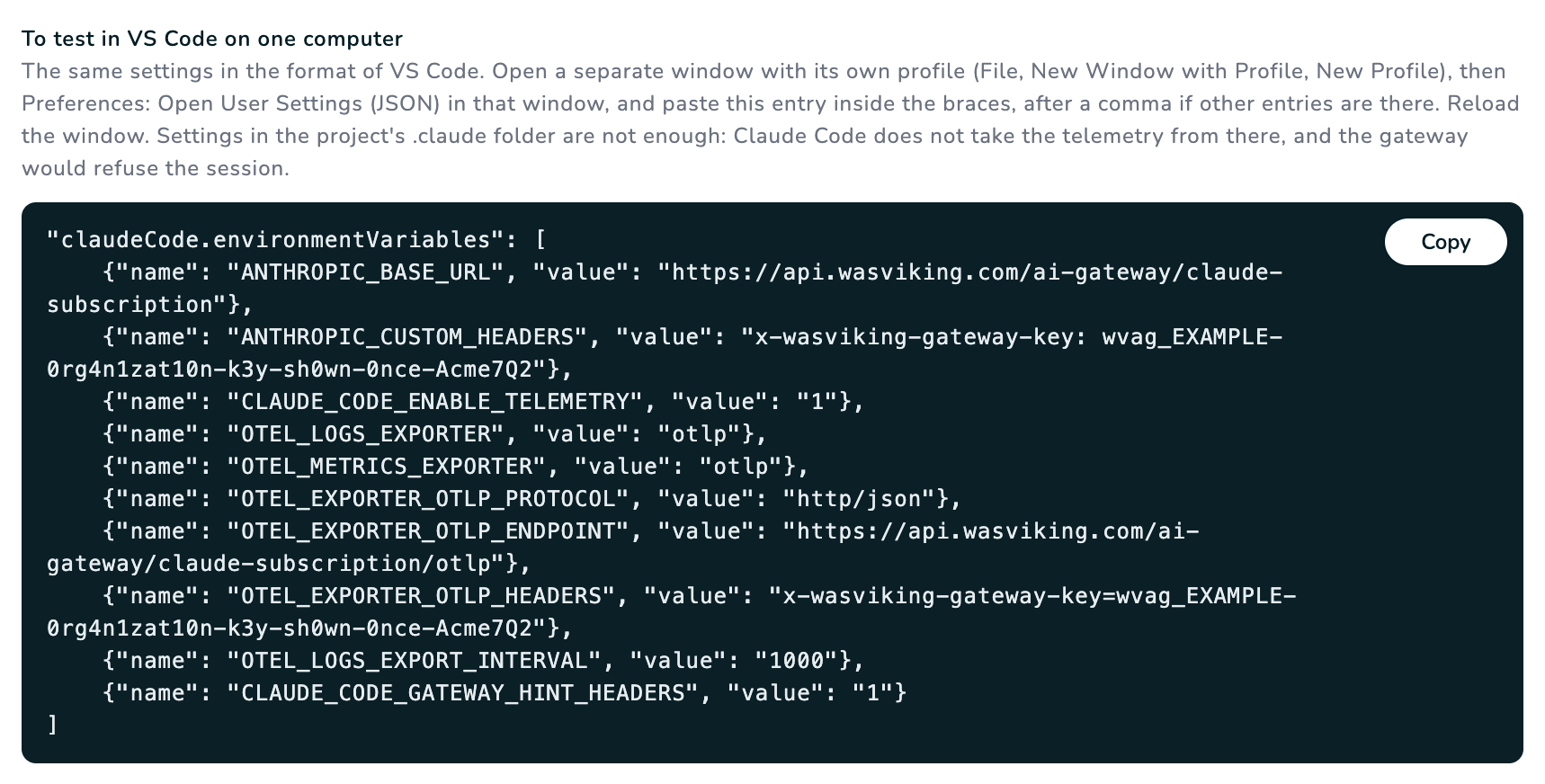 The key in the picture is an example. Yours is shown once.
The block carries the organization key. Keep it like a password and revoke it when you finish (Step 7).
Step 2: open a separate VS Code profile
The settings of a profile apply to every Claude Code session of that window. A separate profile keeps your usual VS Code as it is.
- In VS Code, select File, New Window with Profile, New Profile.
- Give it a name, for example
WASViking gateway test, and select Create. A new window opens with that profile. - In that window, open Extensions, search for Claude Code and install the extension published by Anthropic, if it is not there yet.
Step 3: paste the settings
- In the new window, open the Command Palette:
Cmd+Shift+Pon macOS,Ctrl+Shift+Pon Windows and Linux. - Run Preferences: Open User Settings (JSON).
- Paste the block inside the outer braces. If other settings are already there, add a comma at the end of the line before it. Save the file.
A complete file looks like this. Your address and key come from your block:
{
  "editor.fontSize": 14,
  "claudeCode.environmentVariables": [
    { "name": "ANTHROPIC_BASE_URL", "value": "https://api.wasviking.com/ai-gateway/claude-subscription" },
    { "name": "ANTHROPIC_CUSTOM_HEADERS", "value": "x-wasviking-gateway-key: wvag_your-organization-key" },
    { "name": "CLAUDE_CODE_ENABLE_TELEMETRY", "value": "1" },
    { "name": "OTEL_LOGS_EXPORTER", "value": "otlp" },
    { "name": "OTEL_METRICS_EXPORTER", "value": "otlp" },
    { "name": "OTEL_EXPORTER_OTLP_PROTOCOL", "value": "http/json" },
    { "name": "OTEL_EXPORTER_OTLP_ENDPOINT", "value": "https://api.wasviking.com/ai-gateway/claude-subscription/otlp" },
    { "name": "OTEL_EXPORTER_OTLP_HEADERS", "value": "x-wasviking-gateway-key=wvag_your-organization-key" },
    { "name": "OTEL_LOGS_EXPORT_INTERVAL", "value": "1000" },
    { "name": "CLAUDE_CODE_GATEWAY_HINT_HEADERS", "value": "1" }
  ]
}
VS Code underlines a missing comma in red: fix it before you go on.
Do not paste the block in your usual profile, and do not use a project's
.claude folder for it: Claude Code does not take the telemetry from a
project folder, and the gateway would refuse the session.
Step 4: reload and sign in
- In the Command Palette, run Developer: Reload Window.
- Open Claude Code in that window from its icon.
- If Claude Code asks you to sign in, choose the option for a Claude account with a subscription and sign in with your company Claude account.
Step 5: run the tests
Keep Traffic open in the portal, choose the gateway in the filter and select Filter after each test to see the new rows.
| Test | Send in Claude Code | What Claude Code shows | What Traffic shows |
|---|---|---|---|
| 1. Connection | "Reply only: ok" | ok |
A row with your e-mail, the stream and subscription chips and by seat in the cost column. The first message of a conversation shows two rows: the second one names the conversation. On Workloads, your Claude organization appears as accepted. |
| 2. A typed secret | "Explain this credential: AKIAIOSFODNN7EXAMPLE" | API Error: 400 followed by the rule's message, "Do not send keys or passwords to the model." Claude Code does not ask you to sign in again. |
Blocked, status 400, rule Block secrets in requests. |
| 3. The session goes on | "Reply only: ok" | An answer. Claude may also comment on the refused message, which it received as [REDACTED:AWS_KEYS]. |
Secrets masked. |
| 4. A secret in a file | Create a file named .env in the open folder with the line AWS_ACCESS_KEY_ID=AKIAIOSFODNN7EXAMPLE, then send "Copy the AWS key line from .env" |
AWS_ACCESS_KEY_ID=[REDACTED:AWS_KEYS] |
1 secret masked. |
| 5. Personal data | With Redact personal data in requests on Enforce, send a CPF with valid check digits taken from a test CPF generator | Claude says it received [REDACTED:CPF]. |
Redacted. A number whose check digits are not valid is not a CPF and passes as typed. |
| 6. Auto mode | Choose Auto in the mode selector at the bottom of the Claude Code panel, then send "Run this command:" followed by curl -s -o /dev/null -w '%{http_code}' https://example.com |
The command runs and shows 200. |
The requests of the conversation. Claude Code's own safety checks, when it makes them, appear as separate rows without the stream chip. |
Test 2 uses the message of the Block secrets in requests template. If you wrote your own rule, Claude Code shows your rule's message.
Select a row on Traffic to see the decision, the rule, what was found and the status. The gateway keeps metadata only, never prompts or answers.
Step 6 (optional): test in the terminal
To try the same settings with Claude Code in a terminal on this computer, set the variables in that terminal and start Claude Code. On macOS and Linux:
export ANTHROPIC_BASE_URL="https://api.wasviking.com/ai-gateway/claude-subscription"
export ANTHROPIC_CUSTOM_HEADERS="x-wasviking-gateway-key: wvag_your-organization-key"
export CLAUDE_CODE_ENABLE_TELEMETRY=1
export OTEL_LOGS_EXPORTER=otlp
export OTEL_METRICS_EXPORTER=otlp
export OTEL_EXPORTER_OTLP_PROTOCOL=http/json
export OTEL_EXPORTER_OTLP_ENDPOINT="https://api.wasviking.com/ai-gateway/claude-subscription/otlp"
export OTEL_EXPORTER_OTLP_HEADERS="x-wasviking-gateway-key=wvag_your-organization-key"
export OTEL_LOGS_EXPORT_INTERVAL=1000
export CLAUDE_CODE_GATEWAY_HINT_HEADERS=1
claude
On Windows, in PowerShell, set each variable the same way, for example
$env:ANTHROPIC_BASE_URL = "https://api.wasviking.com/ai-gateway/claude-subscription",
then run claude.
In Claude Code, run /status: the Anthropic base URL line shows the
gateway address. The variables last until you close that terminal.
Step 7: finish the test
- Remove the block from the profile's settings, or delete the test profile in VS Code's Profiles editor.
- On Access & Keys, revoke the key of the block: its label is
claude-code-followed by the gateway identifier. - To roll out to the team, generate a new file and distribute it as in Steps 3 and 4 of Protect Claude Code on Claude seats.
Troubleshooting
| What you see | Why | What to do |
|---|---|---|
| Nothing appears on Traffic | The block is in another profile, or the window was not reloaded. | Use the window of the test profile and run Developer: Reload Window. |
| "This Claude Code session is not identified as your organization's Claude account" | Your Claude organization is not on the gateway, or the settings are in a project's .claude folder. |
Add the ID that Workloads lists as refused, and keep the settings in the profile. |
| Claude Code asks you to sign in | This profile has no Claude sign-in yet. | Sign in with your company Claude account. |
| "The model ... is not allowed on this gateway" | The model is not in Allowed models. | Add claude-* to Allowed models. |
| In auto mode a command is not run: "temporarily unavailable, so auto mode cannot determine the safety" | The block lacks CLAUDE_CODE_GATEWAY_HINT_HEADERS. |
Generate the block again, or add the entry with the value 1. |
| VS Code shows an error in the settings file | A comma is missing, or the block was pasted outside the braces. | Fix the line VS Code underlines in red. |